
Quick answer
To organize your cloud storage for AI, give every account and folder a clear name, create a dedicated work folder for the assistant, keep sensitive files outside its reach and make sure you can restore anything it changes. An AI assistant only acts on what it can find, so a tidy structure is the best way to get accurate results and avoid costly mistakes.
Why messy cloud storage is riskier with AI
AI assistants such as ChatGPT/Codex, Claude Code or Google Antigravity can now list, move, rename, upload and edit files when they run on your computer. That is a big time saver, but it changes the stakes of disorganization.
When you search for a file yourself, you notice that report-final-v2.docx and report-final-OK.docx are not the same document. An assistant may not. If you ask it to “update the report in my Drive”, it has to guess which report, which Drive and which version. Duplicates, vague folder names and several accounts of the same provider all increase the chance that it acts on the wrong file.
A few minutes of preparation remove most of that ambiguity.
1. Give accounts and folders names an AI can reference
AI requests work best when each destination has an unambiguous name. If you use two Google Drive accounts, “my Google Drive” is not enough. Rename or label them so they can be told apart, for example work-drive and personal-drive.
Apply the same logic to folders:
- Use descriptive names:
Clients/Acme/2026/Invoicesinstead ofNew folder (3). - Keep one naming convention for dates, such as
2026-11or2026-11-02, so the assistant can sort and filter files reliably. - Avoid version suffixes like
final,final2orOK. Use version numbers or let the provider’s version history do the job. - Remove duplicates before you start. Our guide on organizing multiple cloud accounts without duplicate files explains how.
A predictable folder structure helps people too, but for an AI it is the difference between a precise request and a guess.

2. Separate inputs, outputs and archives
Do not point an assistant at the root of your cloud. Create a small, dedicated area for each task:
- Input: the files the AI should read, such as source documents, data or drafts.
- Output: where it saves new or modified files.
- Archive: finished material that the assistant should never touch.
This separation limits the impact of any error and makes results easy to review. You check one output folder instead of searching the whole account for what changed. It also keeps the assistant faster, because it does not have to scan thousands of irrelevant files to understand the task.
3. Keep sensitive data out of reach
Some folders should never be part of an AI workflow: identity documents, contracts, financial records, password exports or client data that you are not allowed to share. Move them to a separate account or folder that you never give the assistant, and encrypt them before uploading if they live in the cloud at all.
Check also what is shared. A folder shared with external collaborators may contain files you did not create, and an assistant that edits or reorganizes it will affect everyone who has access.
4. Build a recovery plan before you automate
Even with confirmations in place, assume that at some point a file will be overwritten, moved to the wrong place or deleted. Before letting AI work with important folders:
- Enable or verify version history in Google Drive, OneDrive or Dropbox.
- Keep a copy of critical folders in a second cloud or on a local disk.
- Remember that a synchronized folder is not a backup: a mirror sync can replicate a deletion in seconds. The differences are explained in cloud transfer vs. cloud sync vs. cloud backup.
When an assistant proposes deleting or overwriting files, read the list before you approve it.
5. Choose how the AI will reach your clouds
There are two practical ways to let a local AI assistant work with cloud storage, and they suit different tasks.
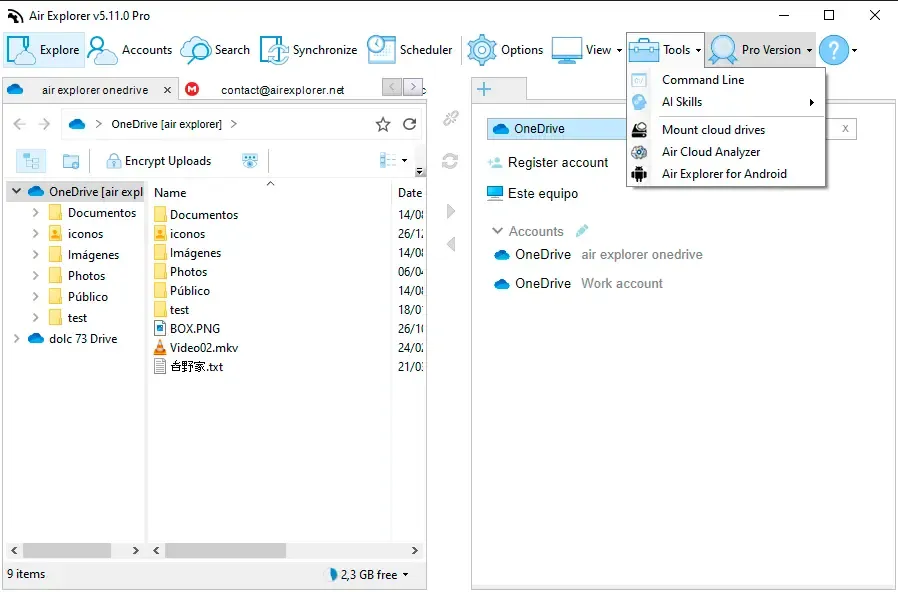
The AI manages your clouds through commands. With Air Explorer and its AI Skill, the assistant translates a plain-language request into Air Explorer commands: searching, uploading, copying between clouds, sharing or synchronizing. It uses the accounts already configured in Air Explorer, so it never needs your cloud passwords. This approach fits file management: moving, sorting, transferring and auditing. See how to upload and organize files with AI using Air Explorer.
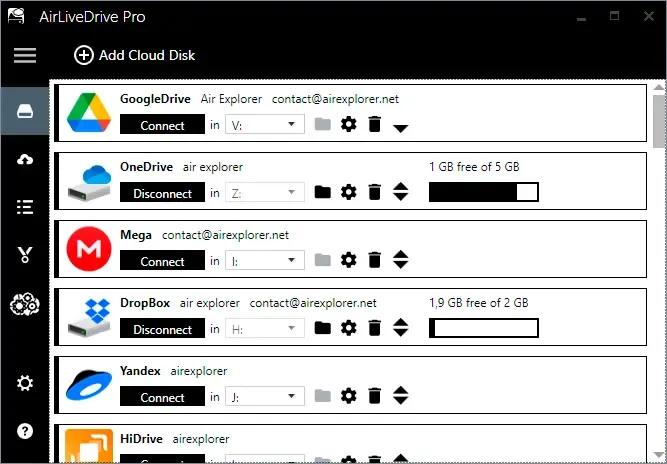
The AI works inside a cloud folder. With Air Live Drive, a cloud folder appears on your computer as a drive or folder. The assistant reads and edits its files as if they were local, and Air Live Drive keeps the changes in the cloud without a full local copy. This approach fits content work: reviewing documents, editing text or updating a website project.
Both approaches benefit from the same preparation: clear names, a dedicated work folder and a way back if something goes wrong.
Checklist before your first AI request
- Each cloud account has a distinct, recognizable name.
- Folders follow one naming and date convention.
- Duplicates and unclear versions have been cleaned up.
- The assistant has its own input and output folders.
- Sensitive files are in a location it cannot access.
- Version history and a separate copy of important data are in place.
With these steps done, you can ask an AI assistant to work with your cloud files and get faster, more predictable results.