
Large files should not dictate how much storage your computer needs
Cloud storage makes it possible to keep years of photos, video footage, design projects, backups, and team documents available from almost anywhere. The problem starts when a computer tries to keep a complete local copy. A 512 GB laptop can fill up quickly when it syncs a shared media library, several cloud accounts, or one project with large source files.
When the disk is crowded, applications have less room for temporary files and users begin moving folders to external drives just to make space. Deleting files is not always an option, and buying a larger disk does not fix a workflow that keeps downloading everything again.
A more flexible approach is to keep the files in the cloud and access them only when needed. Air Live Drive mounts cloud accounts directly in the operating system’s file manager, making the cloud feel like part of the desktop rather than a folder that must be copied locally.
Syncing copies files; mounting connects them
Synchronization is useful when you need a complete offline copy: it keeps a local folder and its cloud version aligned. It is a good fit for active files you must use without an internet connection, but it can be impractical for very large libraries.
Mounting works differently. Air Live Drive creates a direct connection between your cloud account and your computer. You can browse folders, open files, create folders, rename content, and save changes from the familiar file manager, while the full library stays in the cloud.
It is ideal for files needed occasionally: a finished video project, a client archive, a collection of RAW photos, or a shared department folder. You can see the whole collection without making room for every item at once.
How Air Live Drive works in Windows Explorer
On Windows, Air Live Drive mounts each connected cloud account as a drive in File Explorer. After adding an account and authorizing access, you select the drive configuration and connect it. The cloud appears alongside the computer’s other storage locations, with its own drive letter.
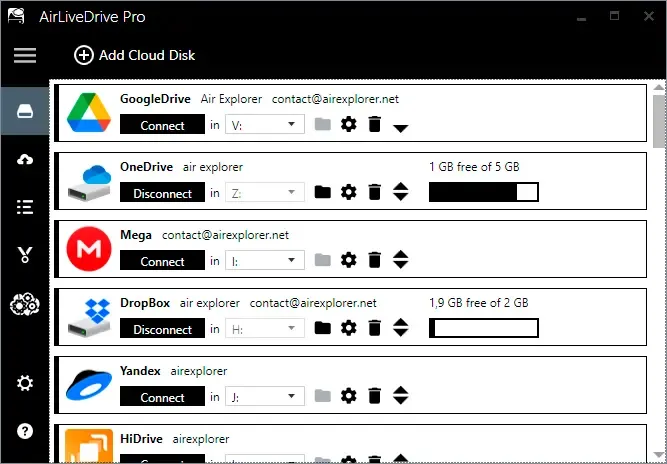
You can navigate its folders, use search, drag files into the cloud, and open a document with the application you normally use. Saving a file back to the mounted drive sends the updated version to the cloud, avoiding the separate routine of downloading, editing, and uploading through a browser.
A video editor can keep an archive in cloud storage and open only today’s project; an office user can work with a presentation in a shared folder from File Explorer. Separate accounts remain easy to identify, even across several providers.
How it works in Mac Finder
The same idea applies on Mac. Once you add and connect an account with Air Live Drive, the mounted storage is available through Finder. You can browse folders, open files with your usual Mac applications, organize content, and save changes without first creating a complete local replica.
This matters on Macs with limited internal SSD storage, where a photo catalog or shared workspace can occupy a large part of the available capacity. Instead of choosing which folders stay synced locally, keep the full archive online and reach it from Finder when the work calls for it.
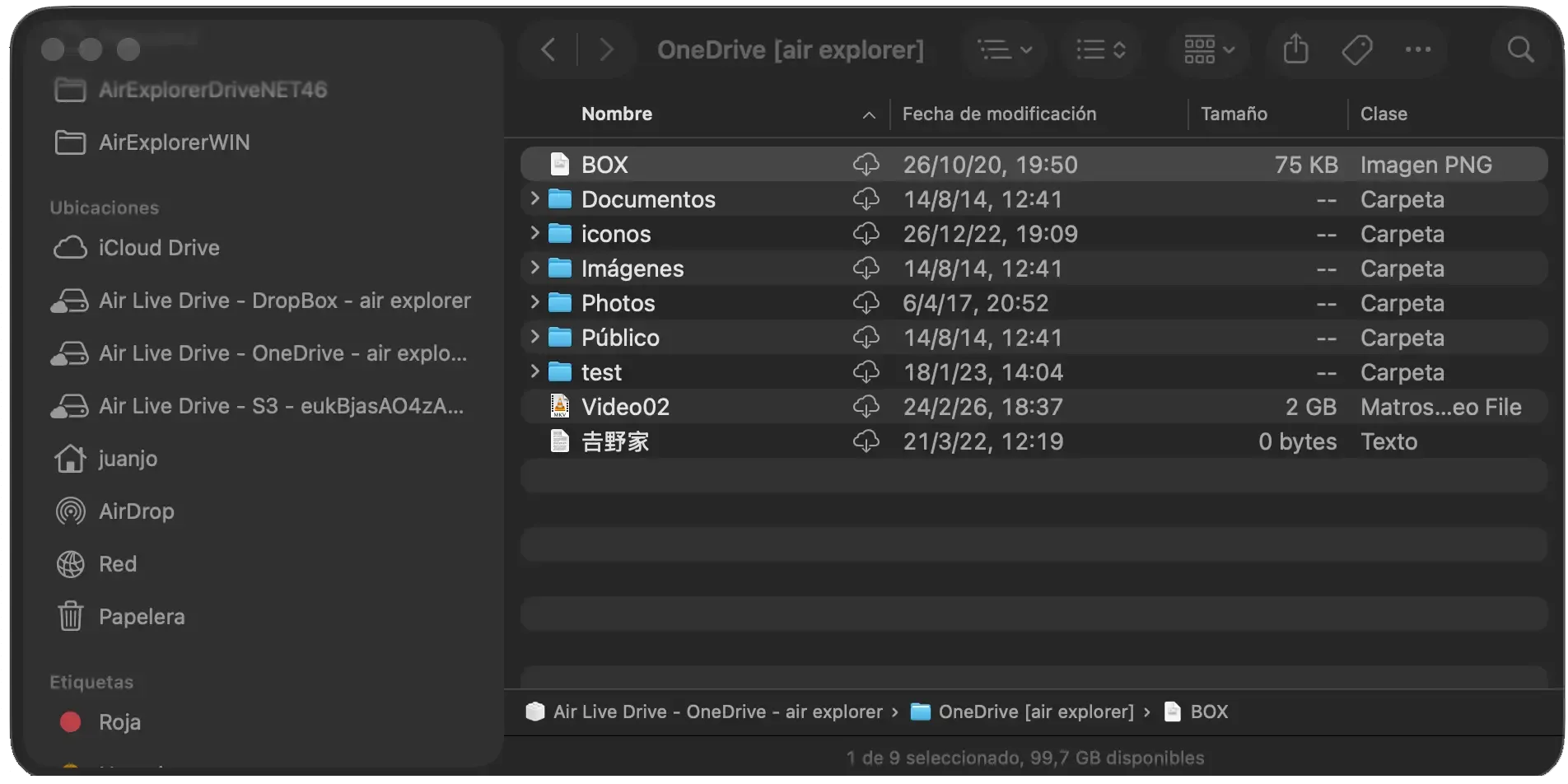
Finder lets you use your normal folder structure, file names, tags, and application workflows instead of depending on a browser tab for every task.
What happens when you open a large file?
Accessing a cloud file requires an internet connection, and performance depends on the file size, your connection, the cloud service, and the application. When you open or edit a file, the data needed for that work is transferred between the cloud and your computer. Air Live Drive can also use a local cache to improve access to frequently used files.
That cache is working data, not a permanent copy of every file in every folder. The bulk of the archive remains in the cloud. For bandwidth-intensive projects, plan around your connection speed and allow enough time for uploads to finish.

A practical way to organize large cloud libraries
Keep current, offline-critical work in a local or synced folder. Put completed projects, long-term archives, large media collections, and shared reference material in mounted cloud drives. Clear top-level folders and consistent names make files easy to find from Windows Explorer or Mac Finder.
This avoids filling the disk with rarely used content and losing track of files across browser tabs, external drives, and duplicate synced folders. It also makes multi-cloud work less confusing, because each account is accessed from the same familiar desktop environment.
Make cloud storage available without making it local
Large cloud libraries should not force you to fill your computer just to keep them accessible. With Air Live Drive, you can mount cloud accounts in Windows Explorer and Mac Finder, work in the applications you already know, and leave most data in the cloud.
For users managing large files across one or more services, that means less local clutter, fewer duplicate copies, and simpler access to the content that matters.