
PikPak makes it easy to save files to the cloud, but a growing collection can become difficult to navigate. Videos, documents, downloads, and backups may end up in the same place, often with names that reveal little about their contents. The result is more time spent searching and less confidence about which files you still need.
A simple folder system helps you find things. Regular cleanup helps preserve your available storage. Here is a practical way to do both, using Air Explorer to manage your PikPak files and Air Cloud Analyzer to make better decisions about the space used across your storage.
Start with a small number of folders
Begin with categories that reflect how you use PikPak. For example:
WorkPersonalPhotosVideosBackupsTo Review
Keep the top level short. If every file needs a new category, the system will be as hard to navigate as an unsorted collection. Add subfolders only where they help. Under Work, you might create folders for clients or projects; under Photos, you might organize by year and event.
The To Review folder is useful for files saved from links or transferred in a hurry. It gives new files a temporary home without forcing you to decide immediately where each one belongs. Set a reminder to review it regularly so it does not become a second cluttered inbox.

Give files names you can recognize later
A clear filename should tell you what the file contains without requiring you to open it. Names such as final2.pdf or video_new.mp4 are easy to create and hard to search for later. Choose a consistent pattern instead.
For documents, try Project-Topic-YYYY-MM-DD, such as Website-Invoice-2026-09-29.pdf. For media, use a subject and date, such as Family-Holiday-2026-08.mp4. If several versions must be kept, add a version number: Project-Proposal-v03.docx.
Avoid adding unnecessary detail to every name. The aim is to make files distinguishable at a glance. Consistency matters more than choosing a perfect convention.
Organize PikPak with Air Explorer
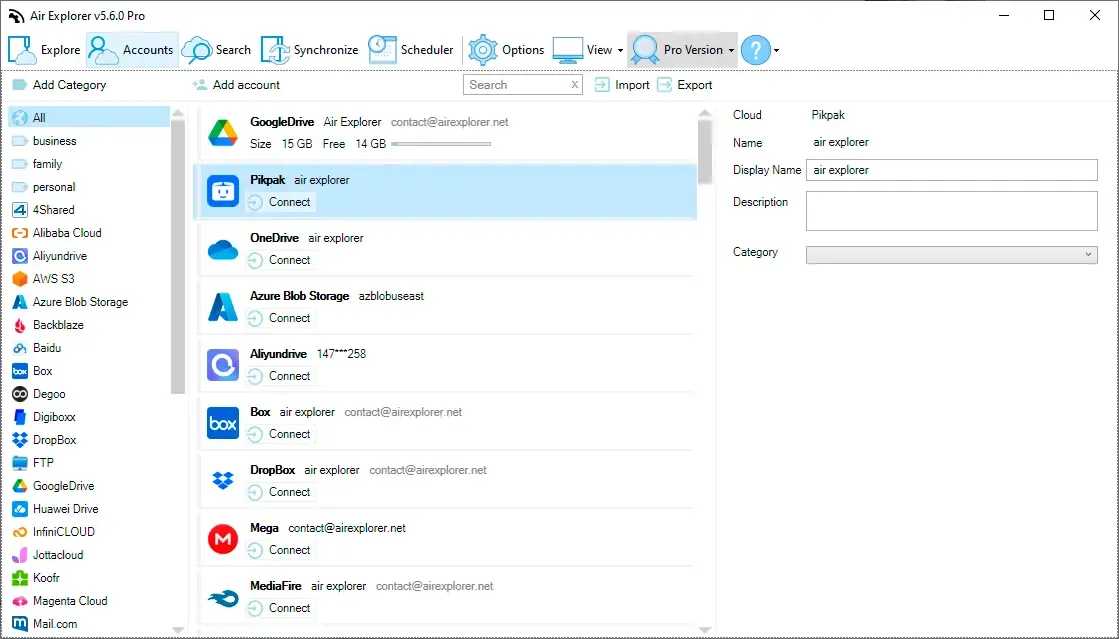
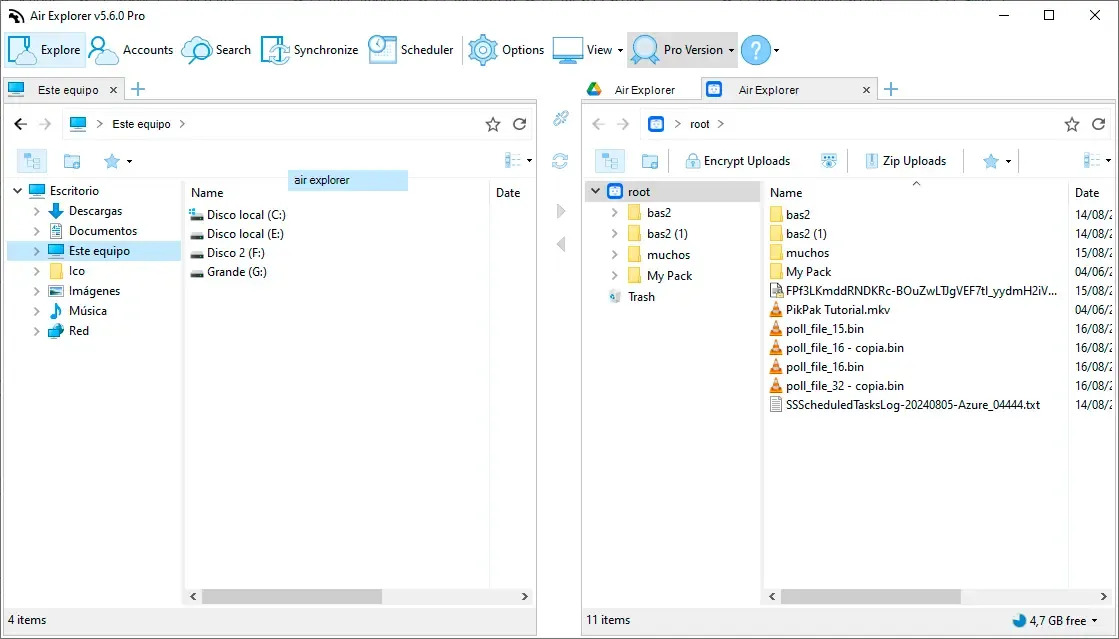
If you manage files on a computer, Air Explorer gives you a convenient way to work with PikPak. After adding your PikPak account, you can browse its folders, create a clearer structure, rename files, and move items into the right locations.
Start with one crowded folder rather than reorganizing the entire account at once. Create the destination folders, move a small group of files, and check the result before continuing. This is especially helpful for large media collections, where similar filenames can make mistakes difficult to spot.
Air Explorer also lets you work with PikPak alongside other cloud services. If an old project should be kept but does not need to occupy space in PikPak, you can copy it to another location and verify the copy before removing the original. Moving files between folders within PikPak improves organization, but it does not reduce the amount of PikPak storage used.
For a closer look at moving files between services, see our guide to copying or moving files between Google Drive and PikPak.
Find what is consuming your storage
A tidy folder structure does not necessarily mean efficient storage. One forgotten backup or several repeated video files can account for much more space than hundreds of small documents.
Air Cloud Analyzer helps you investigate storage usage across the supported cloud accounts and local drives you use alongside PikPak. Its visual charts show where space is concentrated, while views for large files, file types, dates, and duplicates help you decide what deserves attention. This is useful when choosing which files to keep in active cloud storage and which to archive elsewhere.
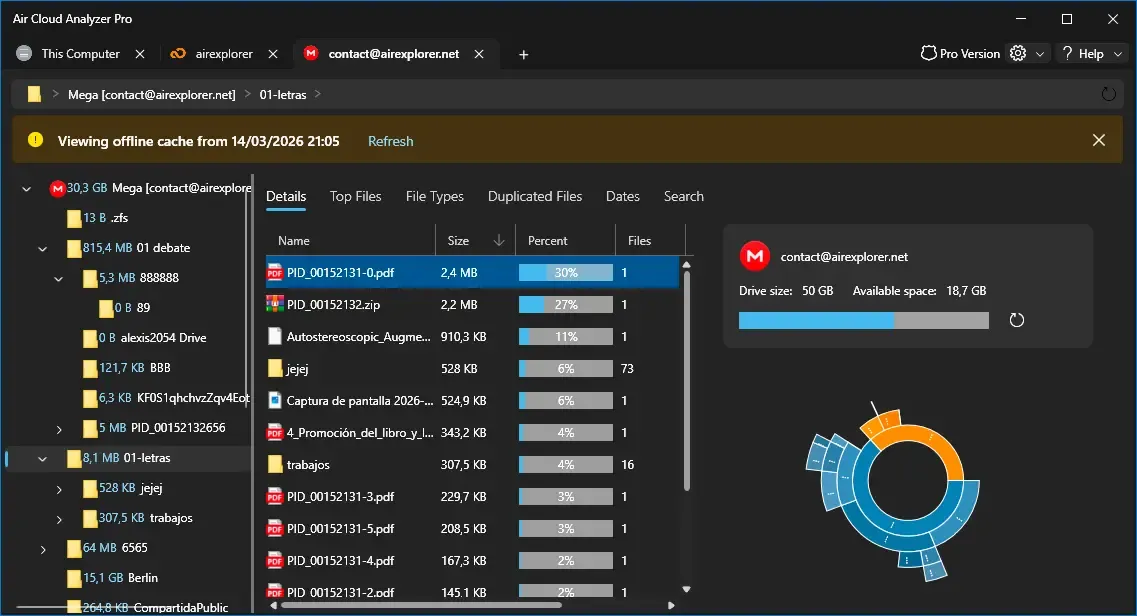
Use that analysis to plan your cleanup, then use Air Explorer to make the relevant changes in PikPak. Review each candidate before deleting it: two files with similar names may be different versions, and an older backup may still be your only copy.
Make cleanup a recurring habit
Once a month, open To Review, rename files you decided to keep, and move them to their permanent folders. Check completed projects, outdated downloads, and backups that have been replaced. If you transfer something out of PikPak to save capacity, confirm that the destination copy opens correctly before deleting the PikPak version.
Remember that deleting a file may not free space immediately. PikPak says deleted files continue to use storage while they remain in Trash. Empty Trash after you have checked that you no longer need those files.
The routine is straightforward: organize with Air Explorer, review storage with Air Cloud Analyzer, and remove only what you have verified is unnecessary. A few minutes of maintenance each month will keep PikPak easier to search and help you make better use of your available cloud capacity.