Quick answer
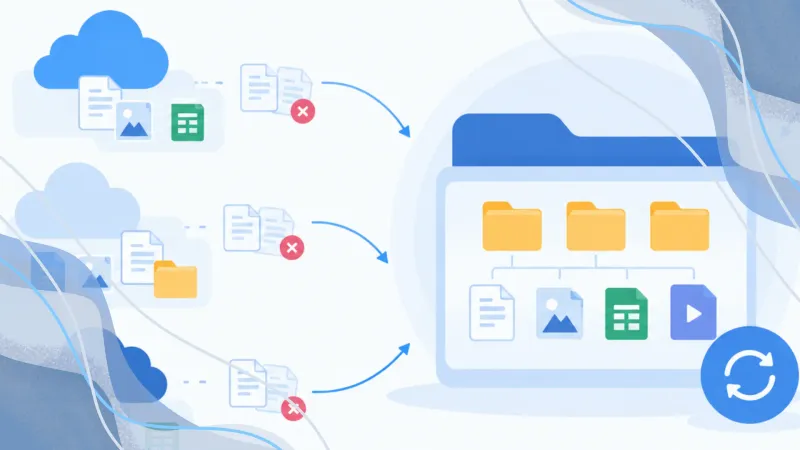
The most reliable way to organize files across multiple cloud accounts is to assign each account a clear purpose, choose one source of truth for every active folder, remove unnecessary duplicates before moving data, and automate only the sync tasks you have reviewed. This keeps files easier to find, reduces wasted storage, and prevents conflicting versions.
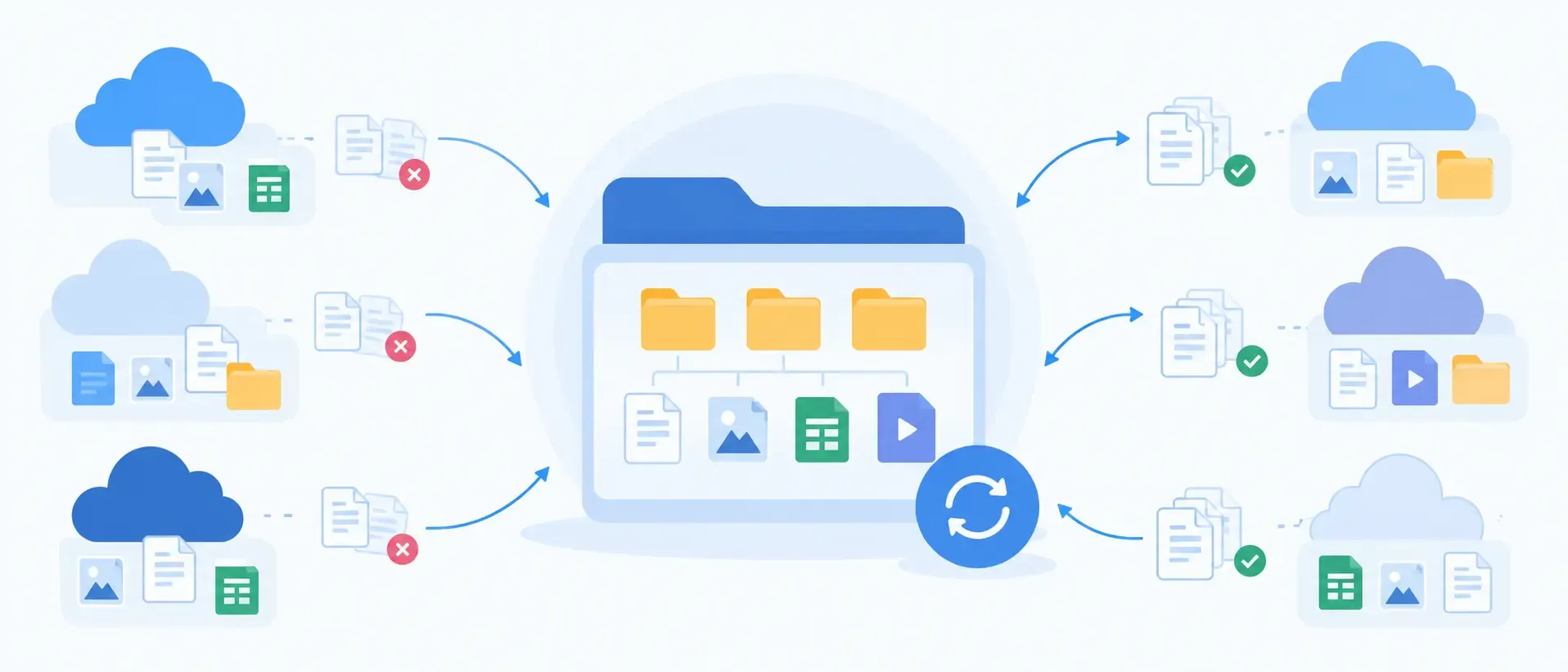
If you use Google Drive for personal files, OneDrive for work, Dropbox for shared projects, and another cloud for backups, it is easy for storage to become fragmented. You may have several “Documents” folders, multiple versions of the same project, and no clear way to tell which copy is current.
The problem is not poor organization. Every cloud service has its own app, interface, and synchronization behavior. A practical system starts by treating all of your storage as one workflow rather than a collection of separate accounts.
1. Audit your cloud accounts before moving files
Before reorganizing anything, list every cloud account and decide what it is for. Keep the roles simple:
- Active work files
- Personal documents and photos
- Shared team folders
- Long-term archive
- Backups
This step prevents a common mistake: moving files first and deciding where they belong later. If OneDrive is your active work location, for example, it should become the primary home for current work files—not just one more copy among several.
2. Create one source of truth for each active folder
The key rule is not “never keep copies.” Backups and archives are often necessary. The better rule is:
Every active folder should have one clearly defined primary location.
For example:
/Work/Clients/2026/Project-Name→ OneDrive/Personal/Photos/2026/Event-Name→ Google Drive/Backups/Laptop/2026-09→ Dropbox or S3
A backup can be a managed replica of the primary folder, but it should be labeled as a backup and updated through a deliberate process. This avoids the uncertainty of having three folders called “Final Project Files” in three different services.
Use the same folder structure and naming conventions where they are needed, but do not rebuild complete working folders in every cloud account without a reason.
3. Find duplicates before starting a major reorganization
Duplicate files often appear gradually. You may have downloaded and uploaded a folder “just in case,” copied the same photos to another account, or used overlapping desktop sync clients.
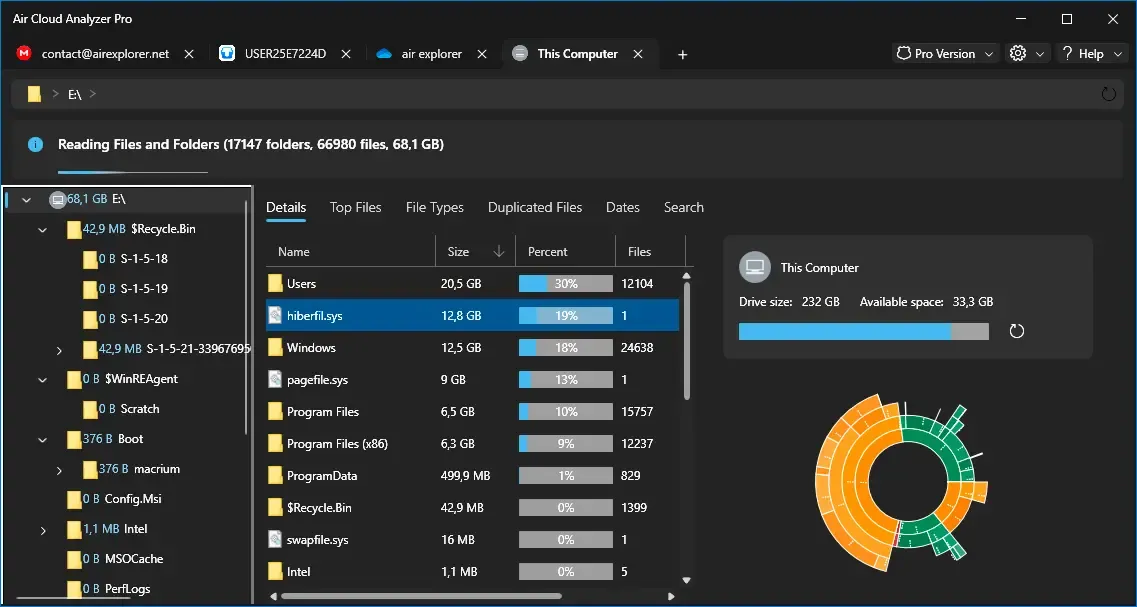
Before transferring large amounts of data, review what you already have. Air Cloud Analyzer can analyze connected cloud accounts and local drives without downloading all of the files. It helps identify large files, old content, storage by file type, and potential duplicates.
Treat duplicate detection as a review tool, not an automatic deletion command. Depending on the cloud provider, files may be identified using available metadata such as name and size, so two matching files are not always identical. Check the file path, date, purpose, and contents before deleting anything important.
A safe cleanup routine is:
- Start with duplicate groups that consume the most space.
- Check where each copy is stored.
- Decide which location is the primary one.
- Keep intentional backups and shared copies.
- Remove or archive only confirmed redundant files.
4. Manage accounts from one place
Switching constantly between browser tabs and desktop sync clients makes organization slower and increases the chance of copying files to the wrong place.
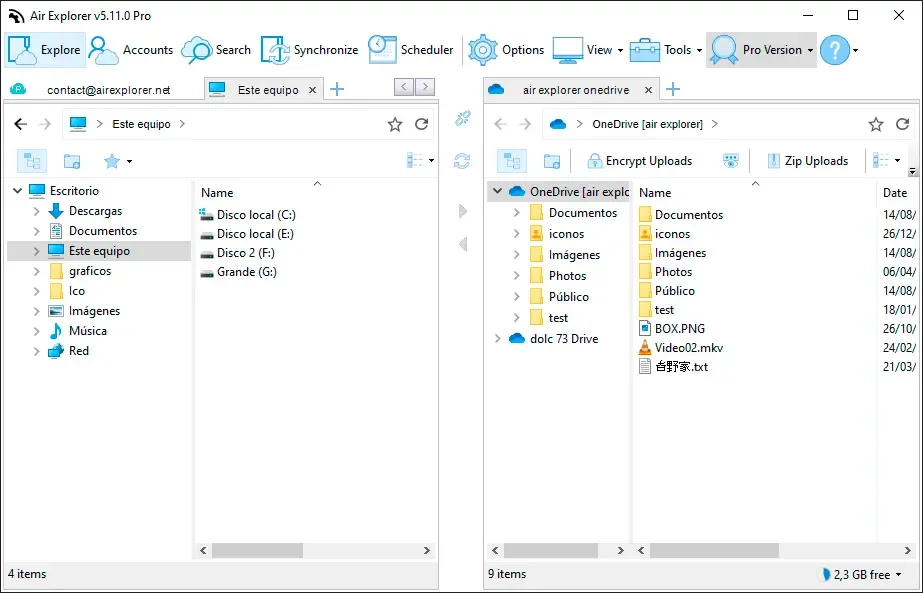
Air Explorer lets you connect more than 50 cloud services, including Google Drive, OneDrive, Dropbox, Mega, S3, SharePoint, FTP, and SFTP, in one desktop interface. You can browse accounts side by side, compare folder structures, and transfer files between clouds without saving intermediate copies on your computer.
This is especially useful when consolidating old folders. Instead of downloading a large archive from one provider and uploading it again elsewhere, you can move it directly between connected accounts.
5. Use synchronization deliberately
Manual copying is one of the main causes of duplicate folders and conflicting versions. For folders that need to stay aligned, use a saved synchronization task with explicit rules.
Air Explorer supports several synchronization modes:
- Mirror: makes the destination match the source.
- Update: transfers new or changed files from source to destination.
- Bidirectional: updates both locations when changes can happen in either place.
- Custom: lets you define more specific behavior.
Always use Compare before running a synchronization. Review which files will be copied, updated, or deleted, then confirm the actions only when they match your intention.
Be especially careful with bidirectional synchronization. It can be useful for shared working folders, but it is not the same as a backup. A mistaken deletion or unwanted change can also be synchronized. For critical files, maintain a separate backup strategy and confirm that version history is available.
6. Automate stable routines
Organization becomes sustainable when it does not rely on memory. Once a sync or transfer task has been tested, save and schedule it.
For example, you could schedule:
- A nightly backup of your active work folder.
- A weekly archive transfer for completed projects.
- A monthly review of storage usage and duplicate files.
Air Explorer’s scheduler can run saved transfers, synchronizations, and backups automatically. If you work with sensitive files, you can also encrypt content and filenames before upload.
Keep your cloud storage organized over time
A clean multi-cloud setup does not require constant manual work. It requires a few clear decisions:
- Give every cloud account a purpose.
- Define one source of truth for active folders.
- Review duplicates before migrating or syncing data.
- Use synchronization rules instead of repeated manual copies.
- Automate only tasks you have checked.
- Review storage regularly as your files grow.
Use Air Cloud Analyzer to understand what is taking up space and identify files worth reviewing. Then use Air Explorer to move, synchronize, protect, and automate the files you decide to keep. Together, they help turn scattered cloud accounts into a system you can trust.