Quick answer
There are three ways to work with TeraBox on a computer. TeraBox’s own app is fine for uploading and downloading files by hand. Syncing with Air Explorer keeps a full copy of a TeraBox folder on your computer, on Windows and Mac. Mounting TeraBox with Air Live Drive turns your account into a drive letter in Windows or a location in Finder on Mac, so any program can open your TeraBox files without downloading the whole account. Both tools support TeraBox on Windows and Mac.
The three options at a glance
| TeraBox app | Sync with Air Explorer | Mounted drive with Air Live Drive | |
|---|---|---|---|
| Where files live | In TeraBox; you download what you need | In TeraBox and in a local folder | In TeraBox; opened on demand |
| Uses disk space | Only for what you download | A full copy of the synced folder | Only a cache of opened files |
| Works offline | Downloaded files only | Yes, with the local copy | No |
| Open files from any app | After downloading them | Yes, from the local folder | Yes, from the drive letter or Finder |
| Other clouds in the same window | No | Yes, 40+ | Yes, 40+ |
| Systems | See TeraBox’s download page | Windows and Mac | Windows and Mac |
Option 1: The TeraBox desktop app
TeraBox offers 1 TB of free storage, and its own app is the official way to reach it. It works well for occasional tasks: uploading a batch of photos, downloading a video, sharing a link.
Its limits show up when TeraBox becomes part of your daily work. The app is built around manual transfers, so your files do not appear as a normal folder that other programs can open, and it only knows about TeraBox. Features such as automatic backup also vary between platforms and plans, so check what your current version offers before relying on it. If your files are also spread across Google Drive, OneDrive or Dropbox, you need one app per service.
Option 2: Sync a TeraBox folder with your computer (Air Explorer)
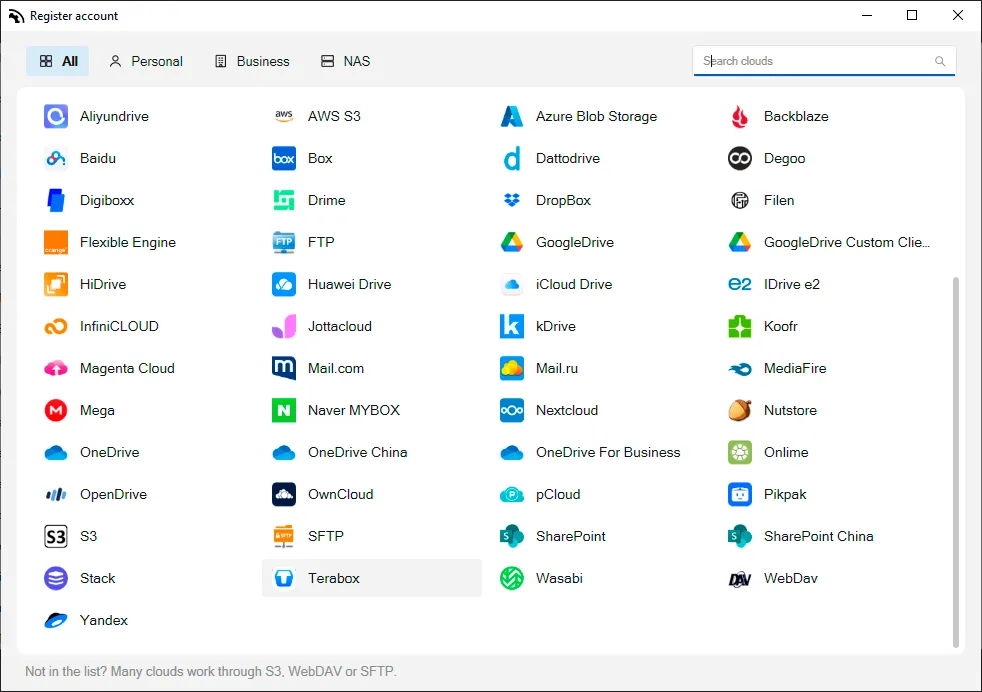
TeraBox is supported in both Air Explorer for Windows and Air Explorer for Mac. You sign in on TeraBox’s own login page, and your account then appears next to your local folders and your other clouds.
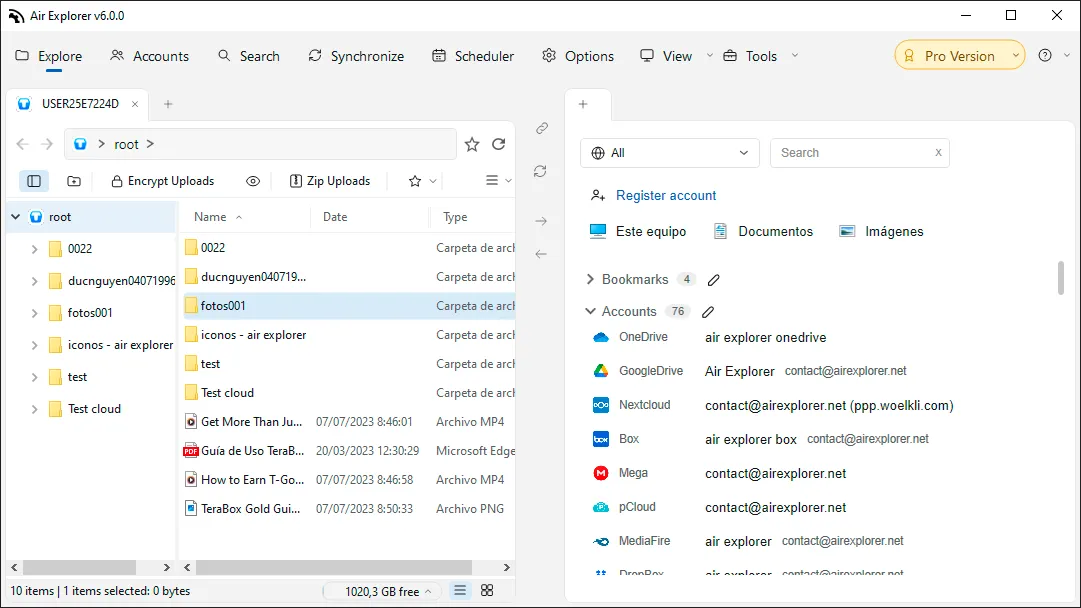
With its sync tool, you choose a TeraBox folder and a folder on your computer, and Air Explorer compares both sides and copies only what has changed. You can mirror in one direction or sync both ways. Because a full copy stays on your disk, you can work offline and keep a local backup of what you store in TeraBox.
The free version syncs TeraBox with your computer and other clouds. Air Explorer Pro adds scheduled syncs and encryption before files reach TeraBox. Our step-by-step guide shows how to sync TeraBox with your PC, and Air Explorer explains why TeraBox has no WebDAV or FTP access and what to use instead.
Best for: offline access, local backups, and moving files between TeraBox and other clouds.
Option 3: Mount TeraBox as a local drive (Air Live Drive)
Air Live Drive supports TeraBox on Windows and Mac. Once you connect your account, TeraBox appears in File Explorer as a drive letter, such as D:, or in Finder as its own location on a Mac. Word, Photoshop, VLC or any other program can open and save files there as if they were on a local disk.
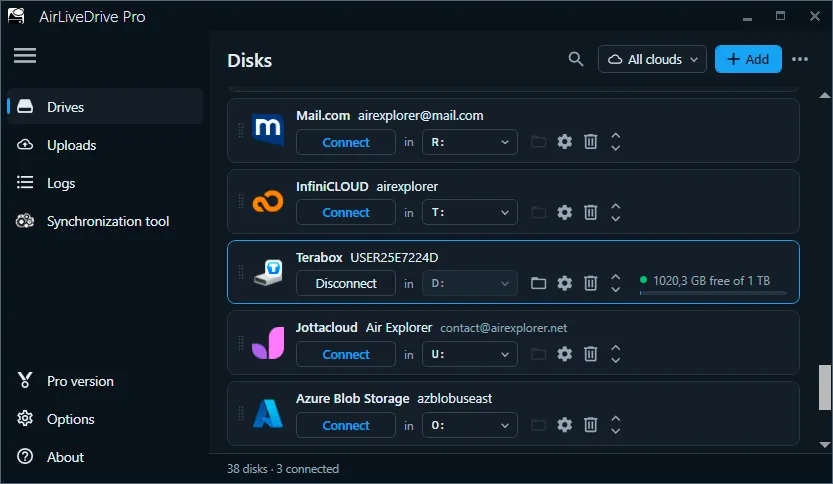
Nothing is copied in advance. Files are downloaded when you open them and uploaded when you save them, so a 1 TB account does not need 1 TB of free space on your computer. That makes mounting the natural choice for large photo and video libraries.
The free version mounts up to three drives, one per cloud service, so TeraBox plus two other clouds costs nothing. Air Live Drive Pro removes that limit. If you want to see how mounting works in general, read how to mount cloud drives as local disks.
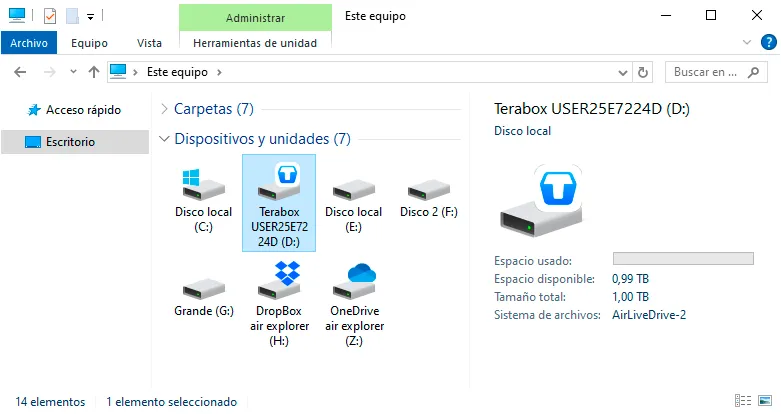
Best for: opening TeraBox files from any program and saving disk space.
Which one should you choose?
- You just upload and download now and then: the TeraBox app is enough.
- You need your files offline or want a local backup: sync with Air Explorer.
- You want TeraBox to behave like a disk, without filling your disk: mount it with Air Live Drive.
- You use a Mac: both options work. Air Explorer for Mac syncs and transfers TeraBox files, and Air Live Drive for Mac shows TeraBox in Finder.
The options are not exclusive. Many users mount TeraBox with Air Live Drive for everyday access and use Air Explorer to sync only the folders they need offline or to back them up to another cloud. If you are unsure about the difference, sync vs backup vs cloud mount explains when each makes sense.
Frequently asked questions
Can I mount TeraBox as a local drive?
Yes, on Windows and Mac. Air Live Drive mounts a TeraBox account as a drive letter in File Explorer or as a location in Finder, and files are downloaded only when you open them.
Do Air Explorer and Air Live Drive support TeraBox on Mac?
Yes. Air Explorer for Mac and Air Live Drive for Mac both support TeraBox, just like their Windows versions.
Can I map TeraBox as a network drive with WebDAV?
Not directly, because TeraBox does not offer official WebDAV or FTP access. Air Live Drive connects to TeraBox on its own, so you do not need WebDAV.
Does Air Explorer store my TeraBox password?
No. You sign in on TeraBox’s own page, and Air Explorer keeps the session instead of your password.
Is it free?
Yes. Air Explorer’s free version syncs TeraBox with one account per cloud, and Air Live Drive’s free version mounts up to three drives, one per cloud service.