
Uploading and organizing files is only half of cloud management. The other half is knowing what you already have: where a document is, which account is running out of space, which folders are shared and with whom. These checks are easy to postpone because they mean opening every cloud, one by one.
With Air Explorer’s AI Skill, a local AI assistant can do this review for you. You ask in plain English, and the assistant runs the matching Air Explorer commands on your computer: search, quota, permissions and sharelink. This manual shows how to use them to find, audit and share cloud files with AI.
Before you start
You need Air Explorer Pro with command line support enabled:
- Windows: Options → Command line → Enable command line support.
- Mac: Air Explorer ▸ Preferences… → General. The AI Skill is now also available in Air Explorer for Mac.
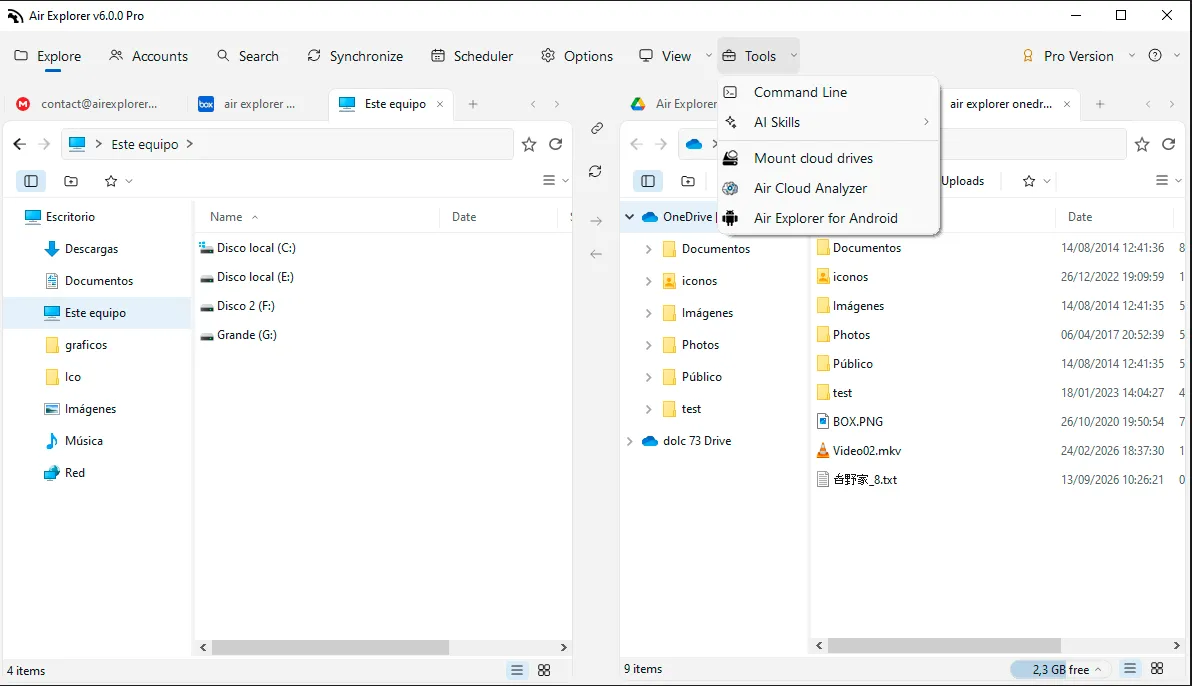
Then open Tools → AI Skills, choose your assistant (Claude Code, ChatGPT/Codex or Google Antigravity) and restart it. Ask “List my Air Explorer accounts” to confirm it works and to see the alias of each account. You will use those aliases in your requests. The full setup is explained in the AI Skills help.
Find files across your cloud accounts
Searching is where natural language saves the most time. Instead of opening several web interfaces, describe the file and the account:
Find invoices larger than 1 MB in my OneDrive from this year.
The assistant translates the request into a search with filters:
AirExplorerCmd search work-onedrive "invoice" /type=document /largerthan=1MB /newerthan=2026-01-01 /fullpathEach part of the request becomes a filter:
/typelimits the results to a kind of file, such as documents./largerthanfilters by size./newerthanfilters by modification date./fullpathreturns the complete cloud path of each result.
The full path is what makes follow-up requests reliable. Once the assistant has found the exact file, you can ask it to download it, copy it to another cloud or create a link to it, without any ambiguity about which file you mean.
Other useful searches:
- “Search my Google Drive for contracts modified after March 1.”
- “Find every video in the Projects folder of my Dropbox.”
- “Look for files named budget in all my accounts.”
Check space and spot cleanup candidates
Running out of space is usually discovered at the worst moment, when an upload or a sync fails. Ask for a quick overview instead:
How much free space is left on each of my cloud accounts?
The assistant runs quota for each account and summarizes used and free storage. From there, combine it with search to find what is taking up space:
- “Find files larger than 500 MB in my backup-dropbox account.”
- “Show me documents in my OneDrive that have not been modified since 2023.”
The result is a list of cleanup candidates, not an automatic cleanup. Review it, decide what to keep, and move older material to an account with more free space before deleting anything. If you prefer to automate these checks with scripts, see how to automate cloud storage quota checks with the command line.
Review who has access to your files
Shared folders tend to accumulate collaborators over time: former colleagues, clients from finished projects or personal accounts used once. With the AI Skill you can review and adjust access without opening each provider’s sharing dialog:
Show who has access to the Shared folder in my Google Drive.
The assistant uses the permissions command to list the people and access levels for that folder. You can then act on the result:
- “Give read access to alice@example.com on the Clients/Acme folder of my Google Drive.”
- “Remove access for bob@example.com from the Shared folder.”
Permission options depend on what each cloud provider supports, so the available access levels may vary between services. Before removing access, check that the person no longer needs the files: they will lose access immediately.
Create share links on request
When you need to send a file quickly, ask for a link instead of opening the provider’s website:
Create a shareable link to report.pdf in my Dropbox.
The assistant uses sharelink to generate the link and returns it in the conversation, ready to paste into an email or chat. If there are several files with the same name, it can search first and use the full path to share the correct one.
Remember that anyone with a public link can usually open the file. For confidential material, share it with specific people using permissions instead.

A quarterly cloud audit routine
These requests become more useful when you combine them into a short routine. Every few months, ask your assistant to:
- Check space: “How much free space is left on each of my accounts?”
- Find large and old files: “Find files larger than 200 MB, or not modified in two years, in my fullest account.”
- Review sharing: “Show who has access to my shared folders in Google Drive and OneDrive.”
- Act with confirmation: copy what you want to keep to an archive account, remove access that is no longer needed, and only then delete what is truly obsolete.
The whole audit takes a few minutes of conversation instead of an afternoon of clicking through web interfaces. To keep your accounts easy to audit, see how to organize your cloud storage before letting AI work with it.
Safety tips
The AI Skill asks for confirmation before deleting or overwriting files, but the final decision is yours:
- Deletions may be permanent. Depending on the provider, a deleted file may not go to a recycle bin.
- Copy before you delete. When cleaning up, copy files to another account first and delete the originals only after checking the copy.
- Read the list. Before approving a deletion or a permission change, review exactly which files or people are affected.
- Your passwords stay private. The assistant uses the accounts already configured in Air Explorer and never needs your cloud credentials.
Boost your cloud power — try Air Explorer now
Conclusion
Finding files, checking space and reviewing who has access are tasks that rarely get done because they are tedious. Air Explorer’s AI Skill turns them into quick requests in plain English, across all your cloud accounts at once. Combined with uploading and organizing files with AI, it gives you a complete way to manage your clouds by conversation.