Quick answer
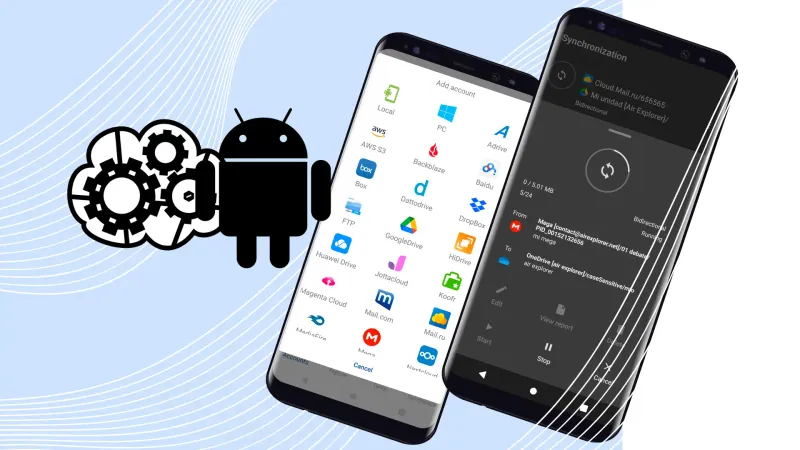
To sync cloud folders from an Android phone, you need an app that can compare two folders and copy only what has changed. Air Explorer for Android does this between your phone’s storage and 40+ cloud services, including Google Drive, OneDrive, Dropbox, Mega, pCloud and TeraBox, or between two clouds. You pick a source folder, a destination folder and one of four sync modes: Mirror, Mirror Update, Update or Bidirectional.
Why sync from your phone instead of uploading by hand?
Most cloud apps on Android are built for one service. Google Drive’s app knows about Google Drive, TeraBox’s app knows about TeraBox. If your photos live on the phone, your documents in OneDrive and your archive in TeraBox, keeping them in step means opening three apps and remembering what you already copied.
A sync compares both folders first and then copies only the differences. That saves mobile data, avoids duplicate uploads and gives you the same result every time you run it. If you are new to the idea, our guide on how cloud file synchronization works explains the basics.
What you can sync with Air Explorer for Android
Each side of a sync can be:
- Your phone’s storage (“Local” in the app): the camera folder, Downloads or any folder you choose.
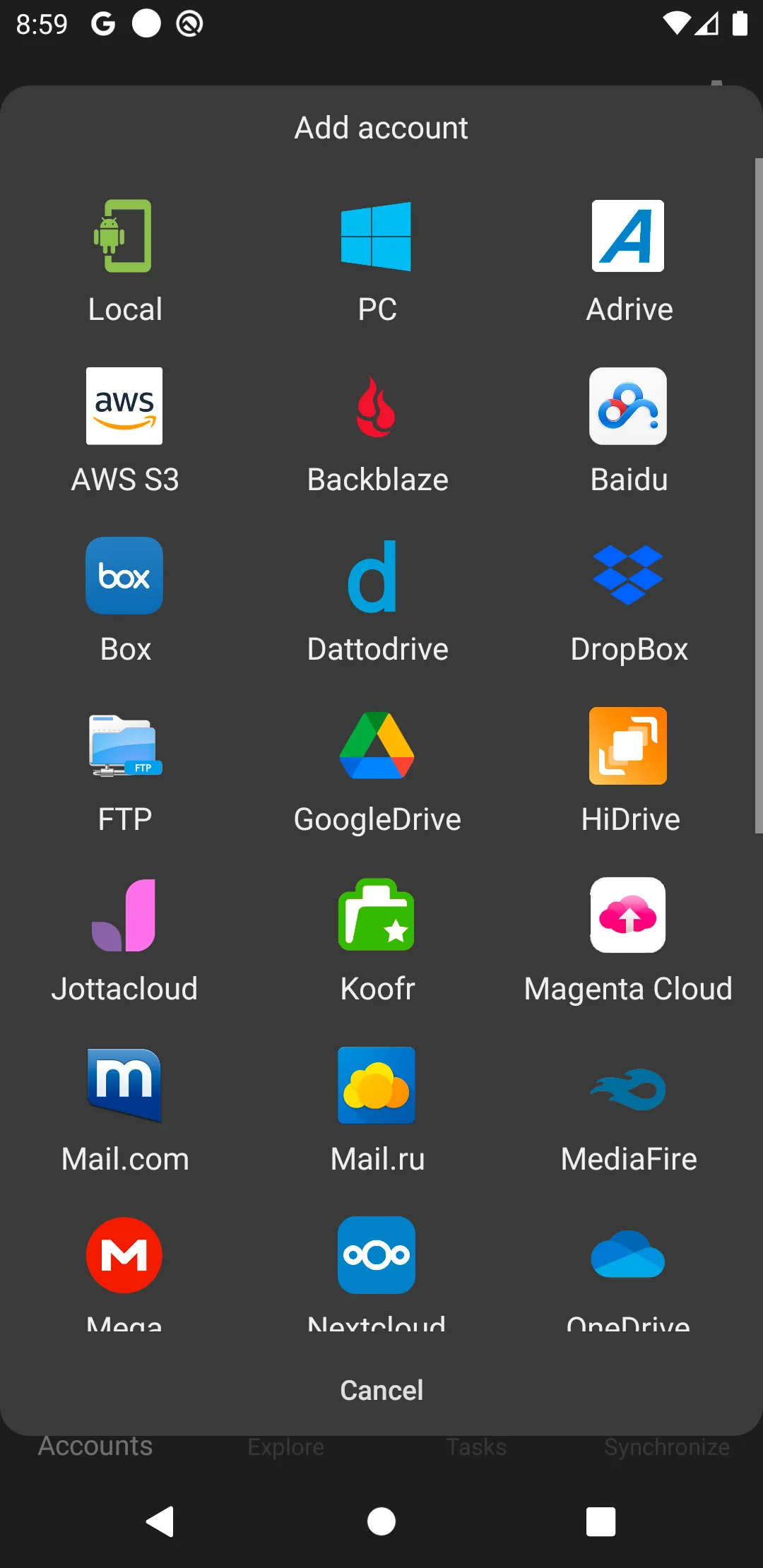
- A cloud account: Google Drive, OneDrive, OneDrive for Business, SharePoint, Dropbox, Box, Mega, pCloud, Koofr, Jottacloud, Yandex, MediaFire, HiDrive, TeraBox, PikPak, Filen, kDrive and more.
- Your own storage: S3-compatible services such as Amazon S3, Wasabi or Backblaze, Azure Blob Storage, FTP, SFTP, WebDAV, Nextcloud and ownCloud, or shared folders on a Windows PC in your local network.
So you can sync the phone with a cloud, or one cloud with another without passing the files through your phone first.
TeraBox on Android
Many people use TeraBox for its large free plan, but its app only works with TeraBox. In Air Explorer for Android you add it from the list of clouds and sign in on TeraBox’s own login page. From then on, a TeraBox folder can be the source or the destination of any sync, just like Google Drive or OneDrive.
Two common uses:
- Phone photos to TeraBox: keep your camera folder copied to TeraBox to free space on the phone.
- TeraBox to another cloud: keep a second copy of an important TeraBox folder in Google Drive, OneDrive or pCloud.
On a computer, you can also use TeraBox with sync or as a mounted drive.
The four sync modes, explained
The mode decides what happens to files that exist on only one side and to files that have a newer version on one side. In every mode, the first folder you choose is the source and the second is the destination.
| Mode | New files in the source | Files only in the destination | Newer version in the destination |
|---|---|---|---|
| Mirror | Copied to the destination | Deleted | Replaced by the source version |
| Mirror Update | Copied to the destination | Deleted | Kept |
| Update | Copied to the destination | Kept | Kept |
| Bidirectional | Copied to the destination | Copied to the source | Copied to the source |
Mirror
Mirror makes the destination an exact copy of the source. Anything that is not in the source is removed from the destination, and if a file differs, the source version wins.
Use it when the destination is only a copy and nobody edits it, for example a backup of a work folder from OneDrive to pCloud.
Mirror Update
Mirror Update also replicates the source and removes files that are no longer there, but it only copies files that are newer in the source. If a file in the destination is more recent, it is left alone.
Use it when you want a clean replica but someone might occasionally update a file on the destination side.
Update
Update copies new and newer files from the source to the destination and never deletes anything in the destination.
Use it when you want to free space on your phone. Sync your camera folder to TeraBox or Google Drive with Update, check that the files are there, and then delete the photos from the phone. Because Update does not delete, the next sync will not remove your copies in the cloud.
Bidirectional
Bidirectional copies new and newer files in both directions, so both folders end up with the most recent version of everything.
Use it when you edit files on both sides, for example a folder of documents you work on from your phone and from your computer. Keep in mind that a file that exists on only one side is copied to the other, so a file you delete on one side may come back on the next sync. If you want to remove something, delete it on both sides.
Not sure whether you need a sync or a backup? Read sync vs backup vs cloud mount.
How to set up a sync on Android
- Install Air Explorer from Google Play and add your accounts from the Accounts tab.
- Open the Synchronize tab and add a new synchronization.
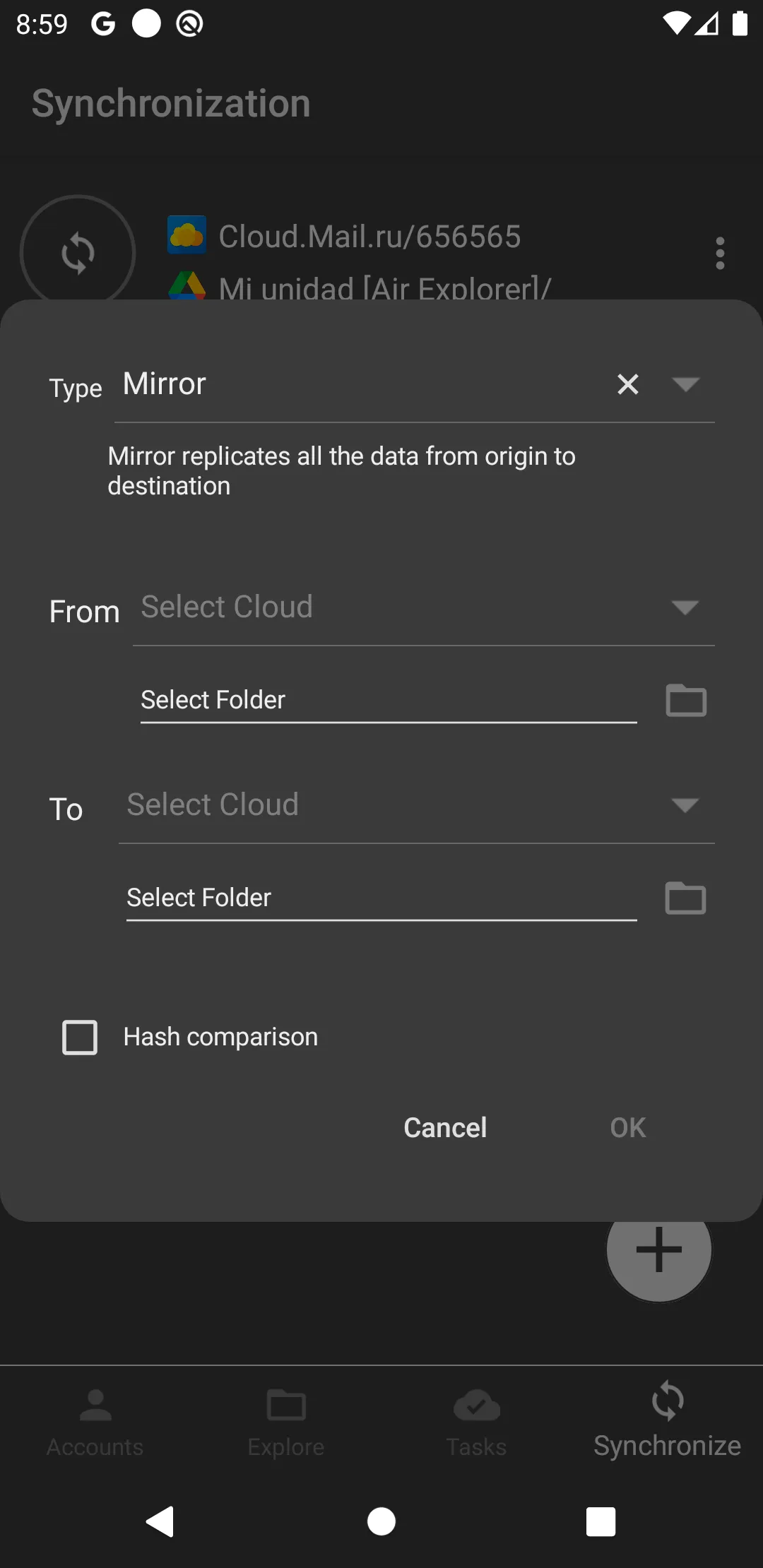
- Under From, choose the account and the source folder. Under To, choose the account and the destination folder.
- Pick the Type: Mirror, Mirror Update, Update or Bidirectional. The app shows a short description of each mode.
- Optionally, turn on Hash comparison to compare file contents instead of only dates and sizes. It is slower, but more precise when dates are not reliable.
- Save the sync and start it. Air Explorer compares both folders first and then copies the differences.
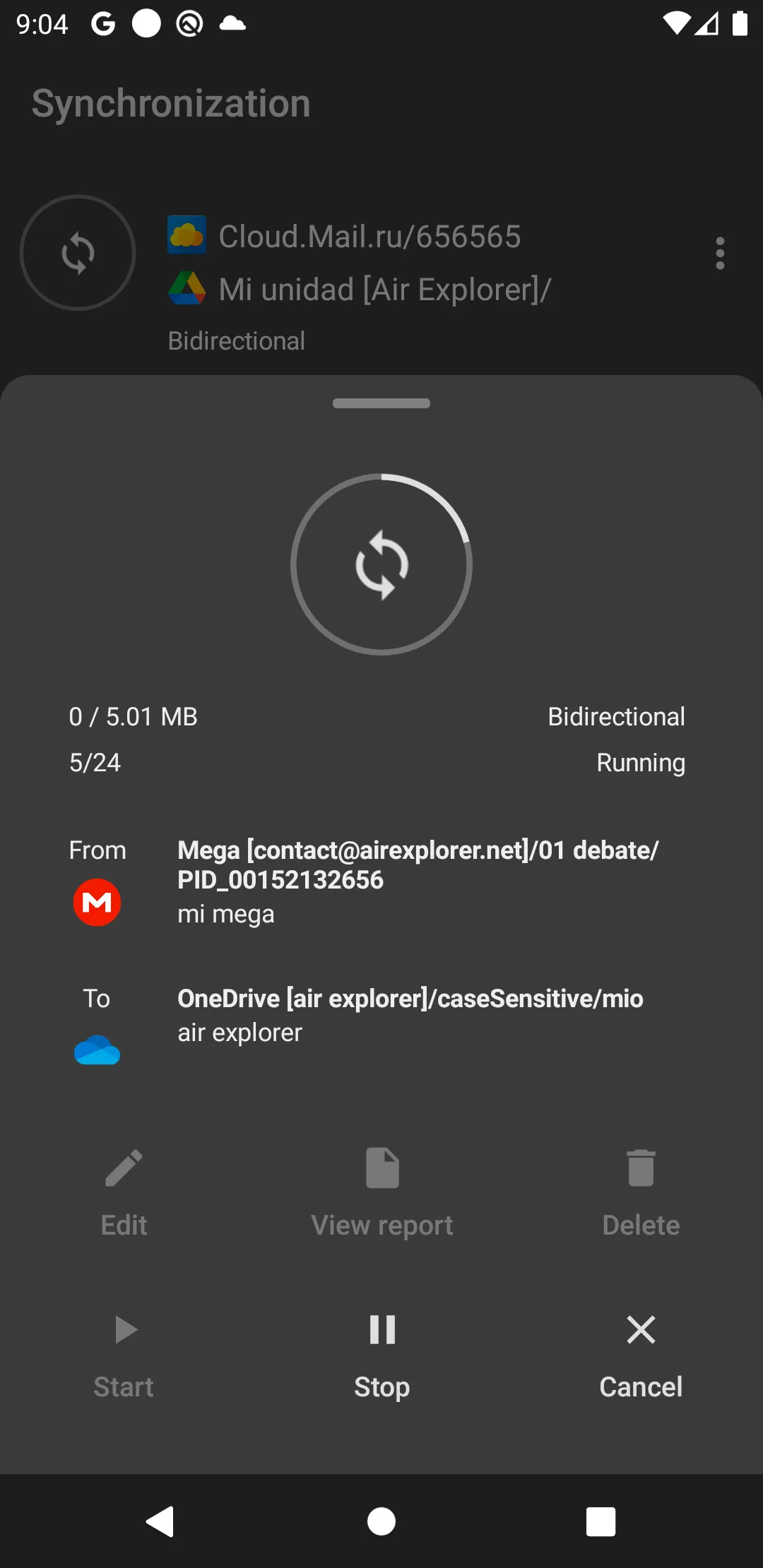
Saved syncs stay in the Synchronize tab, so next time you only need to run them again. Syncs and transfers keep running in the background while you use other apps, and a notification shows their progress.
Tips for syncing over mobile data
- Run the first sync on Wi-Fi. The first run copies everything; later runs only copy changes.
- Start with a small folder to check that the mode does what you expect, especially with Mirror and Mirror Update, which delete files in the destination.
- Use Update for photos you plan to delete from the phone, as explained above.
- Do cloud-to-cloud syncs from the app, not by downloading. If you only need to move files once, see how to transfer files between clouds from Android.
Free version and Pro
The free version of Air Explorer for Android has no ads and includes up to 3 saved synchronizations, one account per cloud service and 2 simultaneous transfers. Air Explorer Pro removes the sync limit, lets you add several accounts of the same service, allows more simultaneous transfers and adds encryption. You can buy it inside the app as a yearly subscription or a lifetime license.

Frequently asked questions
Can I sync TeraBox from my Android phone?
Yes. Air Explorer for Android supports TeraBox. You sign in on TeraBox’s own page and can then sync a TeraBox folder with your phone or with another cloud.
Can I sync two cloud accounts on Android without downloading the files first?
Yes. Choose one cloud as the source and another as the destination, for example Google Drive and OneDrive. You do not need to download the files to your phone yourself.
Which sync mode deletes files?
Mirror and Mirror Update delete files in the destination that are not in the source. Update never deletes. Bidirectional copies files that exist on only one side to the other side.
Does the sync keep running if I leave the app?
Yes. Syncs and transfers keep running in the background, and a notification shows their progress until they finish.
How many syncs can I create for free?
Up to three. Air Explorer Pro removes the limit.