
Cloud file synchronization is the automatic process that keeps your files updated and consistent across two or more locations, whether that’s your PC, a cloud service, or multiple clouds at once. Whether you work remotely, manage large amounts of data, or simply want a reliable backup strategy, understanding how sync works is the first step. Tools like Air Explorer and Air Cluster make this process straightforward, even without technical expertise.
What Is Cloud File Synchronization?
When a file changes, synchronization software detects the modification by comparing timestamps or file content (hash comparison) and applies the update to the destination. This is different from a simple backup: a backup is a one-time copy, while synchronization is an ongoing, dynamic process that keeps both sides in sync.
Air Explorer and Air Cluster both offer five synchronization modes to cover every scenario:
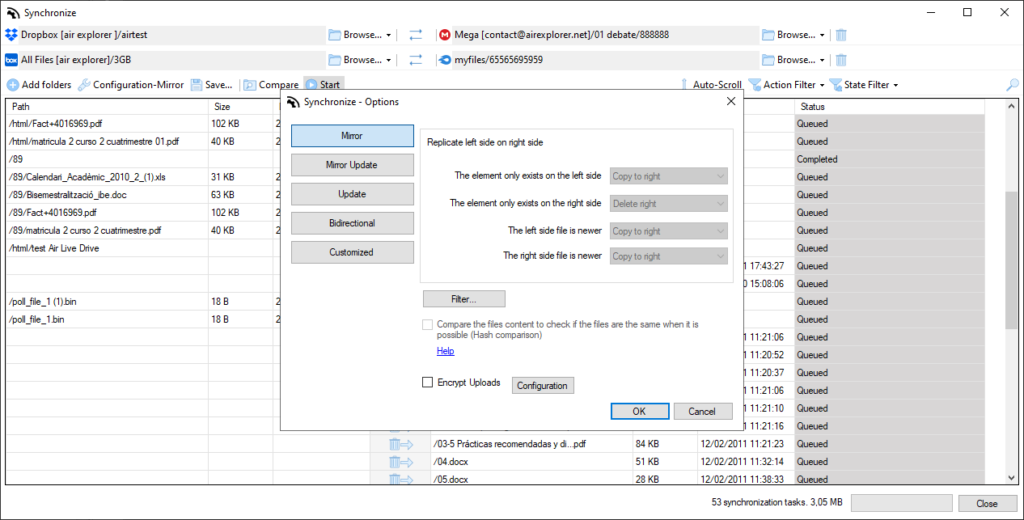
- Mirror: the destination replicates the origin exactly; any file deleted on the left is also deleted on the right
- Mirror Update: same as Mirror, but only copies files that are newer on the origin side
- Update: copies new or modified files to the destination without deleting anything
- Bidirectional: changes on both sides are reflected in each other, keeping both locations identical
- Customized: lets you manually configure the behavior for each case (file only on left, only on right, newer on either side)
Common Use Cases for Cloud Synchronization
Cloud sync is useful in a wide range of everyday situations. Here are the most common ones:
- Remote work: keep the same project files updated between your home PC and your office laptop automatically
- Multi-cloud backup: automatically copy everything from Google Drive to OneDrive as a secondary safety net
- Team collaboration: sync a shared folder between Dropbox and SharePoint so everyone always has the latest version
- Maximizing free storage: distribute files across multiple free-tier cloud accounts to overcome individual storage limits
- Encrypted sync: upload synchronized files with encryption enabled for extra privacy and security

How to Sync Files with Air Explorer (Windows & Mac)
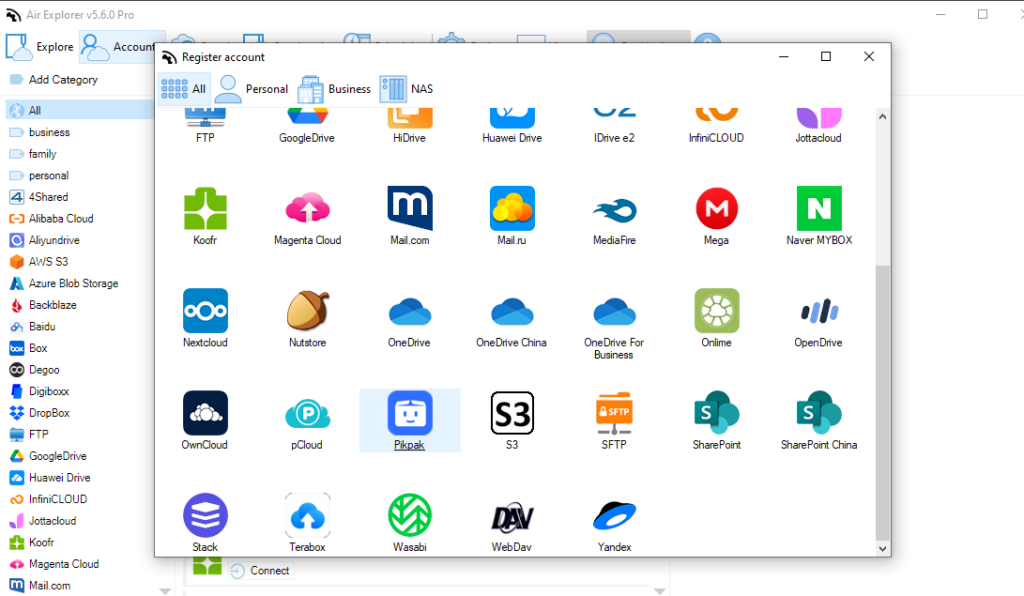
Air Explorer is a multi-cloud manager available for both Windows and Mac that lets you synchronize folders between cloud services, or between your PC and the cloud. It supports over 30 cloud services, including Google Drive, OneDrive, Dropbox, MEGA, Box, and pCloud.
Step-by-step guide:
- Download and install Air Explorer from the official website (Windows or macOS).
- Add your cloud accounts (Google Drive, Dropbox, OneDrive, etc.).
- Open the Synchronize tool from the main menu.
- Select the source folder (left side) and the destination folder (right side), these can be two different clouds or a local folder and a cloud.
- Choose your synchronization mode: Mirror, Mirror Update, Update, Bidirectional, or Customized
- Optionally, enable Hash comparison to verify file content, or check Encrypt Uploads for secure transfers.
- Run the sync immediately or save the task to repeat it automatically
💡 Example: Sync your Google Drive with OneDrive using Mirror mode to maintain an automatic, up-to-date backup of all your work documents across two cloud providers.
Air Explorer also allows you to run multiple synchronization tasks simultaneously and schedule them to run at set intervals, making it ideal for ongoing, hands-off file management.
How to Sync Files with Air Cluster
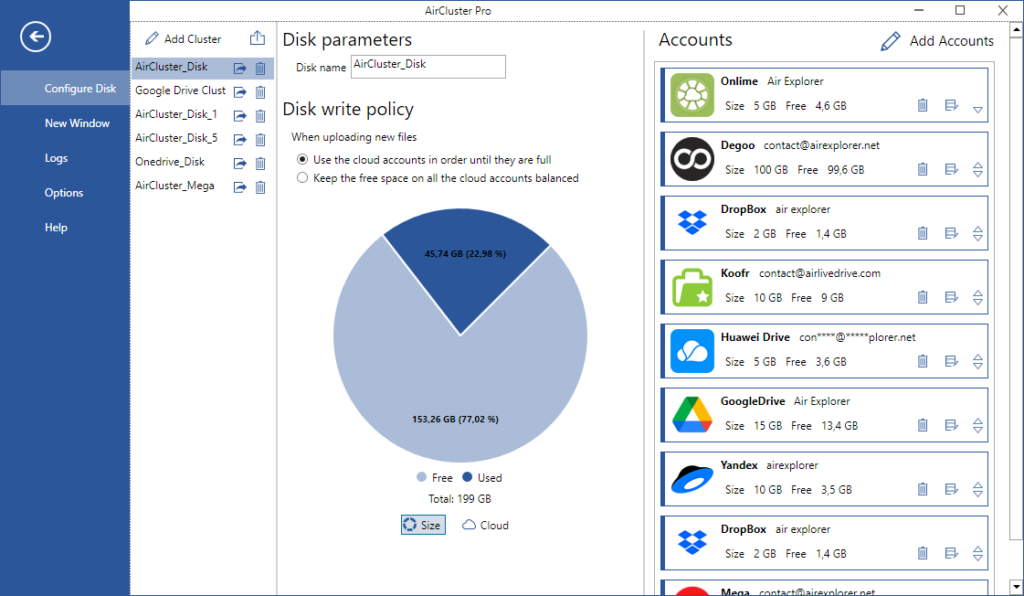
Air Cluster takes cloud synchronization a step further by letting you create a cluster, a virtual pool that combines the storage space of multiple cloud accounts into one. Instead of managing each cloud separately, Air Cluster treats them as a single large drive.
Step-by-step guide:
- Download and install Air Cluster on Windows.
- Create a new cluster and add your cloud accounts (Google Drive, OneDrive, MEGA, etc.).
- Air Cluster displays the total combined capacity of all added accounts.
- Open the Synchronize tool from the main menu.
- Select your local source folder.
- Choose the cluster as the destination.
- Pick your sync mode (Mirror, Mirror Update, Update, Bidirectional, or Customized).
- Air Cluster automatically distributes files across the available cloud accounts based on free space.
- Optionally, enable Hash comparison to verify file content, or check Encrypt Uploads for secure transfers.
- Run the sync immediately or save the task to repeat it automatically
💡 Example: You have three free Google Drive accounts (15 GB each). Air Cluster pools them into a 45 GB cluster and syncs your entire projects folder, no manual management needed.
Air Explorer vs Air Cluster: Which One Do You Need?
| Feature | Air Explorer | Air Cluster |
|---|---|---|
| Platforms | Windows & Mac | Windows |
| Sync type | Cloud-to-cloud / PC-to-cloud | PC-to-cluster / Cluster-to-cluster |
| Multi-account storage pool | ❌ | ✅ |
| Sync modes (5 total) | ✅ | ✅ |
| Hash comparison | ✅ | ✅ |
| Encrypted uploads | ✅ | ✅ |
| Scheduled tasks | ✅ | ✅ |
| Best for | Managing & syncing multiple clouds | Combining cloud accounts for max storage |
Frequently Asked Questions
Can I use Air Explorer on a Mac?
Yes, Air Explorer is available for both Windows and macOS, making it a cross-platform solution for multi-cloud file synchronization.
What is the difference between Mirror and Bidirectional sync?
Mirror makes the destination an exact copy of the origin, including deletions. Bidirectional keeps both sides equal by propagating changes made on either side.
Do I need technical knowledge to use Air Explorer or Air Cluster?
No. Both tools offer a visual interface that guides you through every step of the synchronization setup, including folder selection, mode choice, and scheduling.
Conclusion
Cloud file synchronization doesn’t have to be complicated. Whether you need to keep two clouds in perfect sync, automate your backups, or combine multiple accounts into one unified storage space, Air Explorer and Air Cluster give you the flexibility to do it your way. Pick the sync mode that fits your workflow, set it up in minutes, and let the tools handle the rest, so your files are always where you need them, whenever you need them.