
Many people use the terms sync, backup, and cloud access as if they mean the same thing, but they solve different problems. Cloud sync is designed to keep files consistent across devices, backup is meant to protect data so it can be restored after loss or damage, and cloud mount lets you work with cloud files directly without fully downloading everything first.
If you choose the wrong approach, you often create friction instead of efficiency. A synced folder may not protect you from accidental deletion, a backup may not be convenient for active daily work, and mounting cloud storage is great for access but is not a replacement for a true backup strategy.
What is cloud sync?
Cloud sync automatically updates files between your device and one or more cloud locations so the latest version stays available across systems. It is especially useful when you work on the same documents from different computers or need teams to stay aligned on current files.
The main advantage of sync is convenience. Save a file in one place, and the updated version appears elsewhere without manual transfers, which makes sync ideal for active documents, collaborative folders, and work-in-progress files.
The limitation is that sync mirrors changes, including mistakes. If a file is deleted, overwritten, or corrupted in one synced location, that change can also propagate to the others, which is why sync should not be treated as a full backup on its own.

What is cloud backup?
Cloud backup creates protected copies of your data so you can restore them after accidental deletion, ransomware, device failure, or other data-loss events. Unlike sync, backup is focused on recovery, retention, and resilience rather than keeping every working folder instantly mirrored across devices.
That makes backup the better choice when your first question is, “How do I make sure I can get my files back?” Backup systems are built to preserve data over time, often through snapshots or version history, while synced environments are built to reflect current state.
The trade-off is usability in daily workflows. Backed-up files are usually not meant to be browsed and edited like a live working drive, because the goal is restoration rather than real-time file management.
What is cloud mount?
Cloud mount means connecting a cloud storage account so it appears as a local drive on your computer. Instead of syncing entire folders to consume local disk space, you can browse and open files directly from the cloud as though they were stored on a normal drive.
This model is especially useful for users with large libraries, limited SSD space, or multiple storage accounts. It gives you immediate operational access to cloud data without forcing you to duplicate everything locally, which makes it practical for remote work, creative assets, and document-heavy workflows.
Cloud mount is about access and efficiency, not disaster recovery. It helps you work with cloud files more naturally, but it should be combined with sync or backup strategies depending on how critical the data is.
Which one should you use?
The short answer is that most users should not pick only one. Sync, backup, and cloud mount are complementary rather than mutually exclusive, because each handles a different layer of file management.
Use cloud sync when:
- You need current files available on multiple devices.
- You collaborate on active documents.
- You want automatic updates without manual uploads.
Use cloud backup when:
- Your top priority is data protection and recovery.
- You need protection against deletion, corruption, or hardware failure.
- You want a safer long-term copy of important files.
Use cloud mount when:
- You want to access cloud files like local drives.
- You do not want to fill your computer with synced copies.
- You work with large files or multiple cloud accounts every day.
A simple example makes the difference clearer. If your finance folder must stay identical on your laptop and office PC, use sync; if those records must be recoverable after accidental deletion, use backup; if your media archive is too large to store locally but you still need to open files on demand, use cloud mount.
Where Air Explorer fits
Air Explorer is a strong choice when your needs center on synchronization, file transfers, and centralized cloud file management. It is especially useful for users who work with multiple cloud accounts and want to manage, move, and keep files aligned from a single interface.
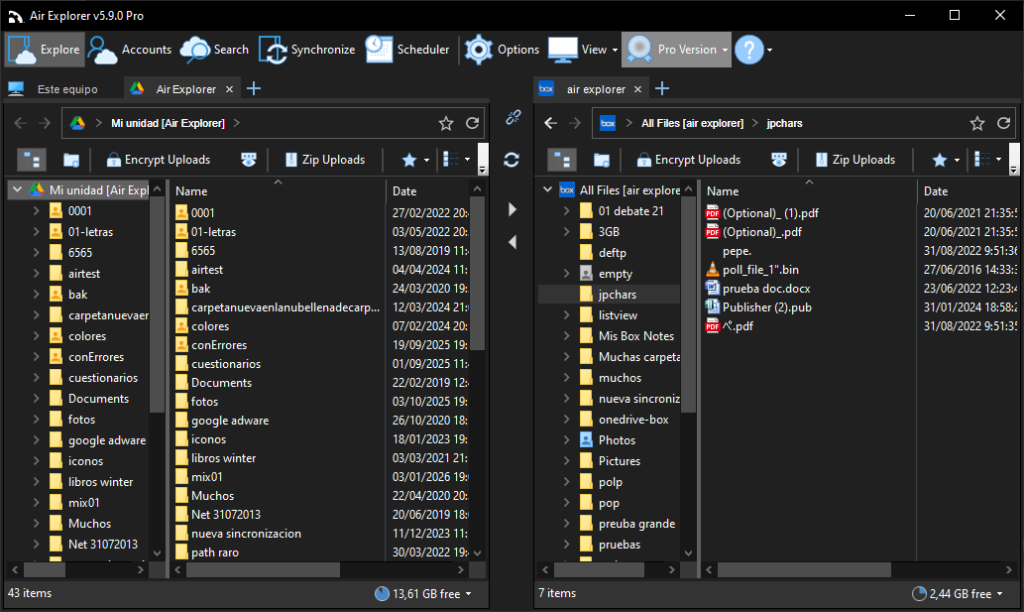
In practical terms, Air Explorer is the better choice when your workflow involves organizing files across multiple cloud services, syncing folders, moving data between providers, or keeping cloud environments under one control panel. That makes it useful for users who need operational control, not just storage space.
Where Air Live Drive fits
Air Live Drive fits the cloud mount side of the decision. Its purpose is to add cloud storage services as disk drives on your computer, which directly matches the need to work with online files as if they were on a local drive without fully replicating them on your machine.
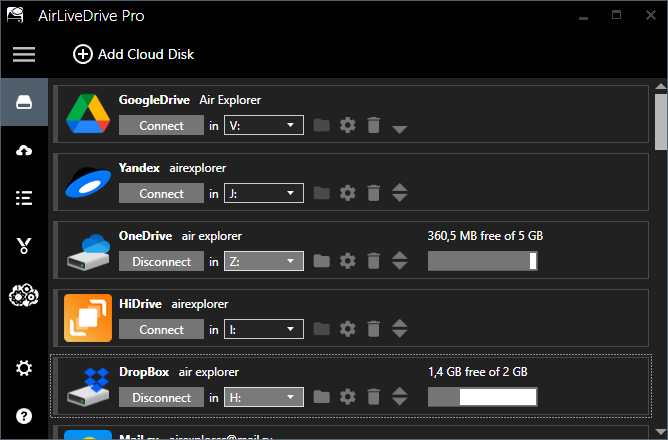
This is especially valuable for users who want a cleaner local setup, faster access to distributed cloud content, and a more natural desktop workflow. If the question is not “How do I protect this?” but “How do I work with this comfortably every day?”, Air Live Drive is often the more relevant answer.
Best practical choice
For most modern workflows, the smartest setup is layered. Use sync for active files, backup for protection, and cloud mount for convenient access to large or distributed cloud content.
That is also why Air Explorer and Air Live Drive work well together rather than competing with each other. Air Explorer supports the management, transfer, and synchronization side of cloud operations, while Air Live Drive improves the day-to-day experience of opening and using cloud files directly from your desktop.