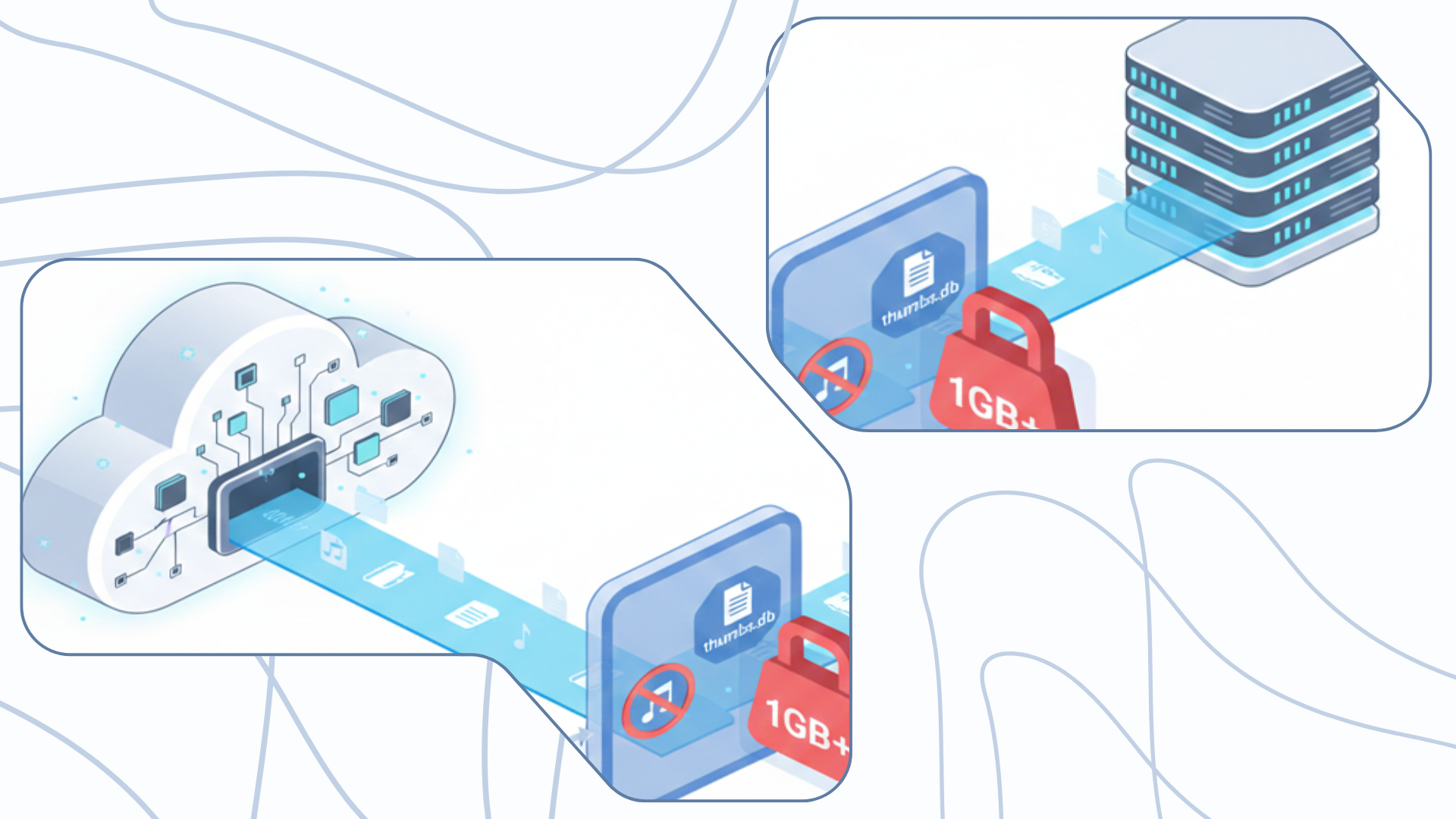
In the digital era, cloud storage has become our primary filing cabinet. However, without proper management, these virtual spaces quickly fill up with “digital junk” that consumes your quota and slows down your productivity. Many users find themselves paying for storage upgrades not because they have more valuable data, but because their cloud is bloated with unnecessary files. By implementing a smart synchronization strategy, you can reclaim your space and ensure you only host what truly matters.
The problem of “Cloud bloat”
Cloud bloat occurs when temporary system files and forgotten massive archives accumulate over time. The primary offenders are often invisible to the average user: .tmp files, created by applications during active sessions, and thumbs.db, a Windows cache file used to store thumbnail previews of images. While these are useful locally, syncing them to the cloud is a waste of resources. Additionally, “forgotten giants”, large installers or raw video files, can eat up gigabytes of space in seconds if not filtered out.
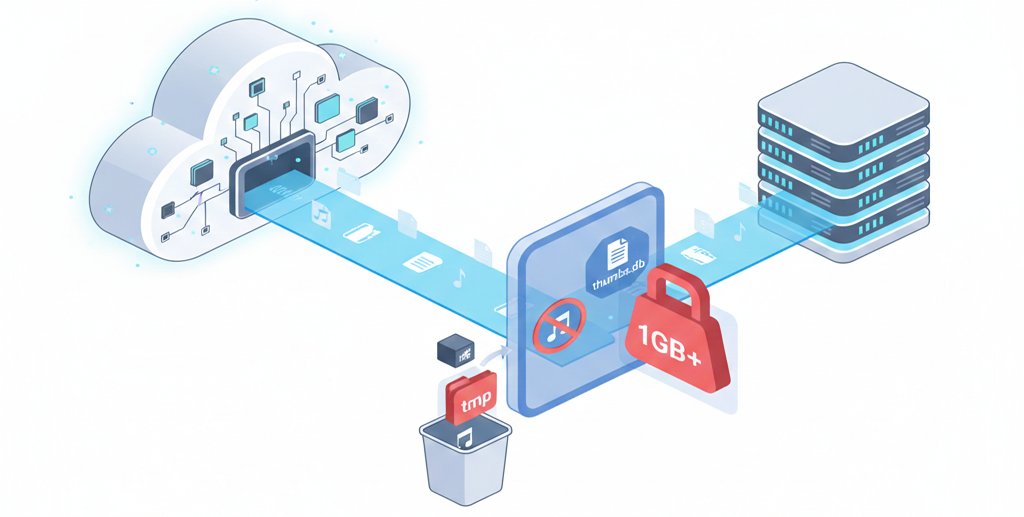
Why every sync needs a strategy
A “set and forget” approach only works if the initial “set” is handled with precision. Moving from basic file copying to an optimized synchronization strategy offers several key advantages:
- Financial efficiency: Avoid the recurring cost of higher cloud tiers by hosting only essential documentation.
- Optimization of time: By excluding junk, you reduce the total volume of data, resulting in significantly shorter upload times and faster sync cycles.
- Data health: Temporary files are often “in use” by the operating system. Attempting to sync them can cause persistent errors or synchronization locks that interrupt your workflow.
Why Air Explorer outperforms standard cloud apps
Standard cloud applications are designed for simplicity, not for granular control. Air Explorer bridges this gap by offering a centralized command center where you can manage accounts from Google Drive, OneDrive, MEGA, and more within a single interface.
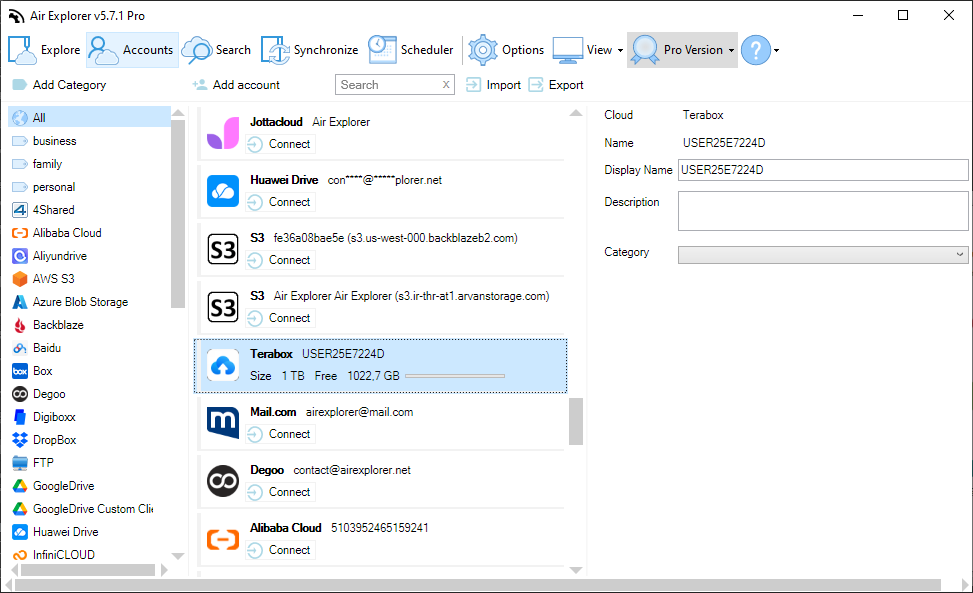
Unlike basic tools, Air Explorer utilizes a professional sync engine that supports advanced logic like Mirror (creating an exact clone) or Update (adding only new files). Its standout feature, however, is the ability to set complex filtering rules before a single byte is uploaded, ensuring your cloud remains a clean, professional environment.
Step-by-step: Setting up an optimized sync with filters
Step 1: Define your task
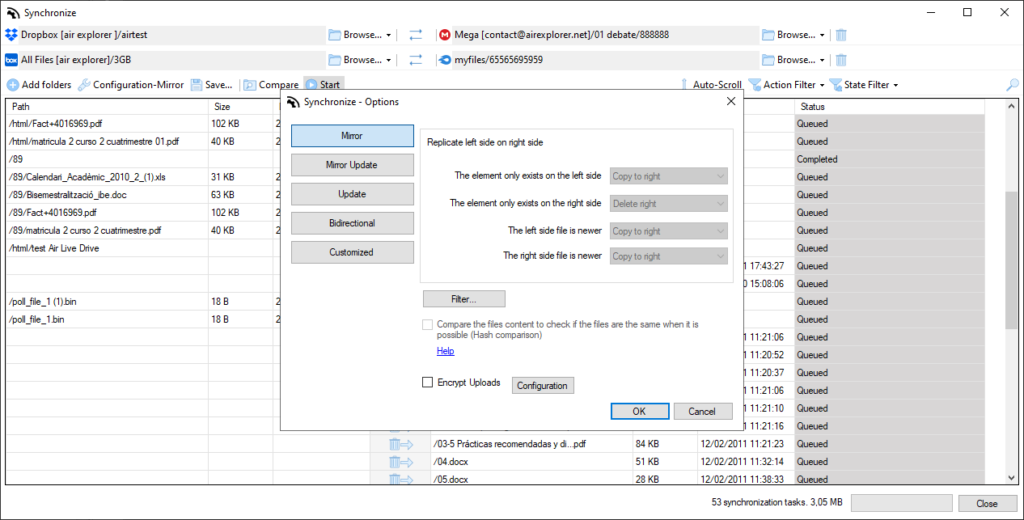
Open Air Explorer and click on the “Sincronizar” (Synchronize) button. Select your source folder (e.g., your local project folder) and your destination cloud account.
Step 2: Choose your sync type
Select the logic that best fits your current needs:
- Mirror: Replicates the source exactly on the cloud.
- Mirror Updated: Replicates the source but only replaces files if the local version is newer.
- Update: Copies newer files from left to right without deleting anything.
- Bidirectional: Keeps both locations identical by moving the newest versions to both sides.
Step 3: Configure your filters
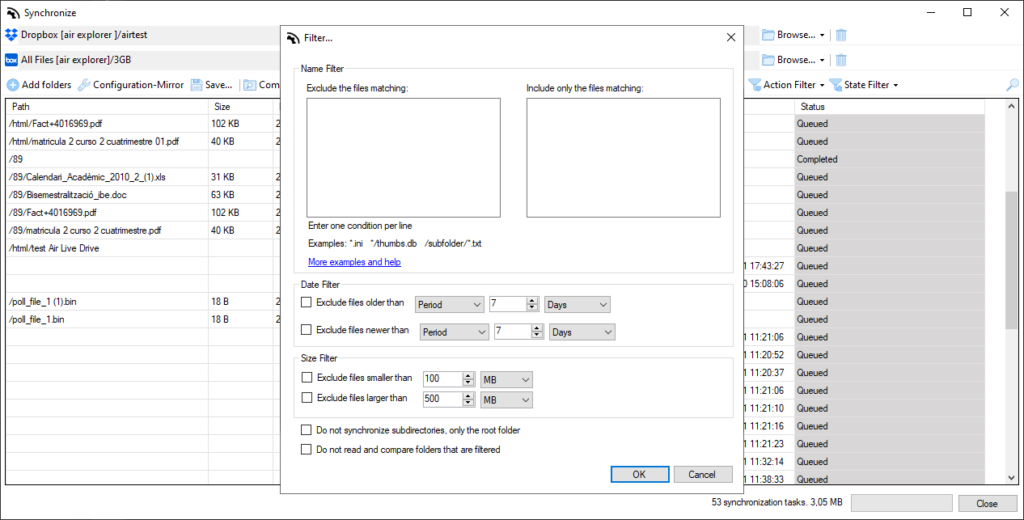
This is the most critical step for saving space. Within the synchronization configuration window, click the “Filter” button. To ensure your exclusions work perfectly, follow these official formatting guidelines:
- Format: Place each exclusion on a new line. Rules are relative to your sync base directories.
- Separators: Always use the forward slash
/for directory separators. - Wildcards: Use the
*symbol to represent zero or more characters.
Key filter examples:
- Excluding .tmp files: Add
*.tmpto the list to ignore all temporary files. - Excluding thumbs.db: Use the rule
*/thumbs.dbto ensure Windows cache files stay out of your cloud. - Managing Large Files: Use the size constraint option in the filter menu to bypass files exceeding a threshold, such as >1GB, to prevent accidental quota consumption.
Step 4: Save your task
Once your filters and sync types are set, save the task. This preserves your logic so that every future sync, whether manual or scheduled, automatically applies these rules.
Step 5: Compare and execute
Before clicking “Start,” always run the “Compare” function. This allows you to verify that the .tmp files and oversized archives you targeted are effectively marked as “ignored.” Once satisfied, execute the transfer with total confidence.
Conclusion
Efficiency in the cloud isn’t just about having more space; it’s about having better-organized data. By taking five minutes to configure filters in Air Explorer, you protect your budget, your bandwidth, and your peace of mind.
Ready to reclaim your storage? Download Air Explorer today and start syncing with professional precision.