The global shift toward remote and hybrid work models has fundamentally redefined how B2B enterprises manage their digital assets. While cloud storage providers like OneDrive, Google Drive, and Dropbox offer robust infrastructure, the interface through which professionals access this data often becomes a bottleneck. Relying on web browsers or local synchronization clients can lead to fragmented workflows, storage limitations on hardware, and significant latency.
To achieve peak operational efficiency, high-performing teams are moving away from traditional synchronization toward a more integrated approach: mounting cloud storage as local network drives.
The Challenges of Traditional Remote Data Management
For creative professionals, developers, and data analysts, the standard “Sync” model presents three primary obstacles:
- Local Storage Constraints: Modern ultrabooks and workstations often feature limited SSD capacity. When a professional needs access to multi-terabyte repositories, syncing the entire cloud library to a local disk is technically impossible.
- The “Download-Edit-Upload” Friction: Browser-based workflows require users to manually download files, edit them, and re-upload. This process is prone to human error and versioning conflicts.
- Application Incompatibility: Many specialized professional software suites (CAD, Video Editing, or specialized IDEs) perform best when interacting with a standard file system hierarchy rather than isolated cloud folders.
The Solution: Air Live Drive as a Performance Bridge
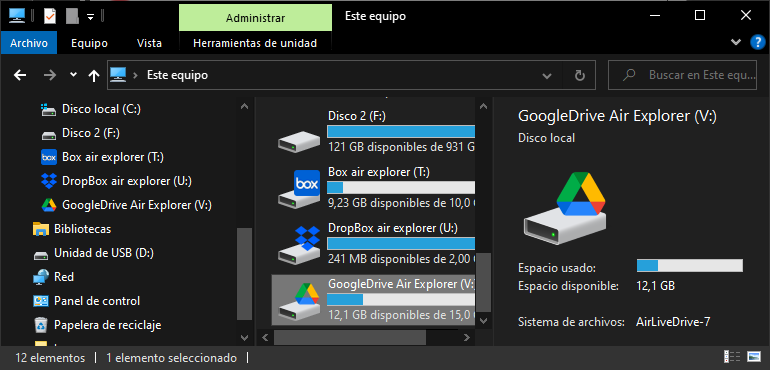
Air Live Drive addresses these challenges by transforming cloud storage into virtual hard disks. Instead of acting as a middleman that copies files, it serves as a live gateway. When you mount a cloud account using this technology, your operating system treats the remote storage as if it were a physically connected hardware drive or a local network-attached storage (NAS).
Why Mount Instead of Sync?
The architectural advantage of Air Live Drive lies in its “On-Demand” data retrieval. It uses an intelligent caching system that only fetches the specific bits of data required for the task at hand.
- Instant Access: Open any file directly from the cloud using your preferred desktop application (e.g., Photoshop, Excel, or VS Code) as if it were on your C: drive.
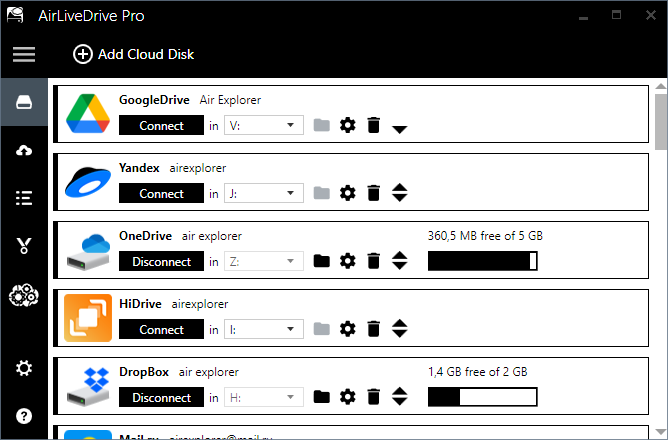
- Unified Management: You can map multiple accounts from different providers simultaneously. This allows for a centralized “Command Center” where your personal files, corporate assets, and client repositories each have their own dedicated drive letter (D:, E:, F:, etc.).
- Zero Disk Footprint: Maintain a clean local disk. Only the small cache occupies space, allowing you to manage petabytes of data from a device with minimal storage.
How to Implement Air Live Drive in Professional Workflows
Optimizing your remote workflow requires more than just installation; it requires a strategic setup to ensure stability and speed.
1. Account Mapping and Drive Assignment
After installing Air Live Drive, the first step is to authenticate your cloud accounts. The tool utilizes official APIs ensuring that your login credentials remain secure and are never stored by the application itself. Assign consistent drive letters to specific clouds across your team to ensure that linked file paths (common in design and engineering) remain functional.
2. Fine-Tuning Cache Settings
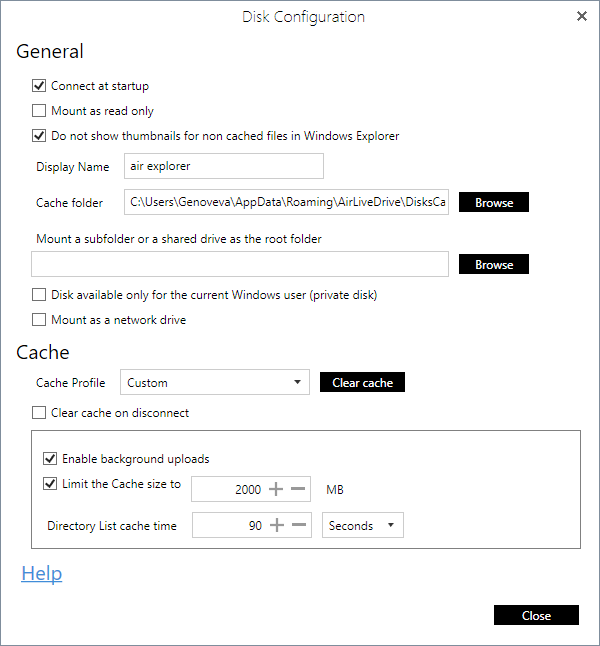
For remote workers in areas with variable bandwidth, the cache settings are critical. You can adjust the size of the local cache and the duration files stay stored locally. A larger cache improves performance for frequently accessed files, providing a “local-speed” experience even when working on massive remote databases.
3. Direct Cloud-to-Cloud Interaction
When used in conjunction with tools like Air Explorer, mounting drives via Air Live Drive allows for sophisticated data movement. You can drag and drop files between different mounted drives (e.g., from a OneDrive ‘L:’ drive to a Google Drive ‘M:’ drive) without utilizing local temporary storage, streamlining cross-platform backups.
Conclusion: Achieving Workflow Transparency
The ultimate goal of a digital workspace is transparency, the technology should fade into the background, leaving only the work. By mounting cloud storage as local network drives with Air Live Drive, professionals eliminate the friction of data management.
This approach not only solves the problem of limited hardware storage but also unifies fragmented cloud silos into a single, cohesive, and high-speed environment. For teams looking to scale their remote operations, adopting a live-mounting strategy is the most effective way to ensure that data is always an asset, never a hurdle.