In the modern digital landscape, the paradox of choice has hit our storage devices. We have more data than ever, yet our physical hard drives, especially the lightning-fast SSDs found in modern laptops, are often smaller than the cloud storage quotas we own. The traditional solution has been “synchronization,” a process that frequently leads to duplicated files, wasted disk space, and the constant anxiety of a “Disk Full” notification.
If you are looking to mount cloud drives as if they were physical hardware, you are shifting from a passive storage model to an active, integrated workflow. This article explores why mounting is the superior strategy for professionals and how Air Live Drive serves as the ultimate bridge between the cloud and your desktop.
Why You Should Mount Cloud Drives as Local Disks
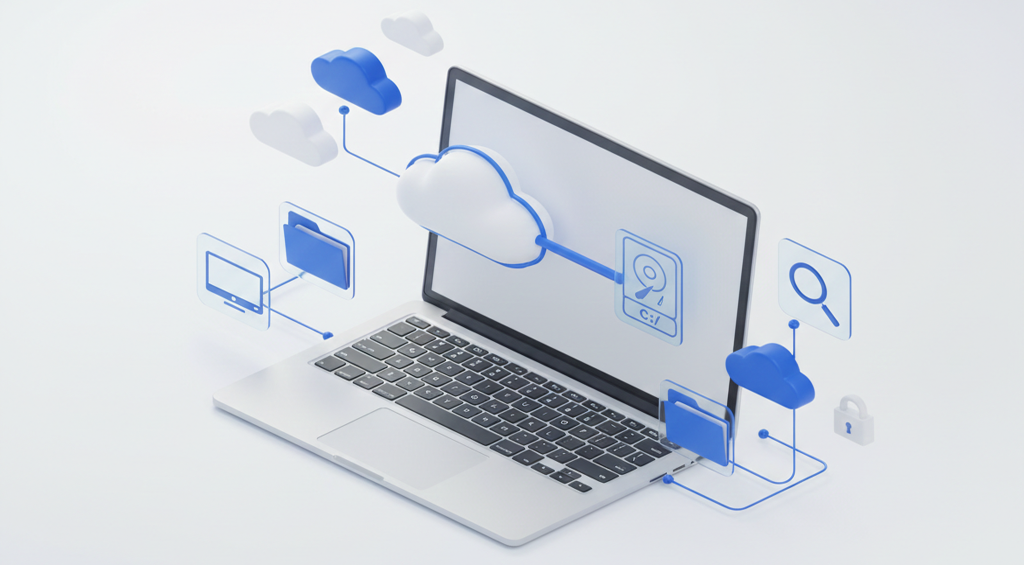
The fundamental shift in mounting a cloud drive lies in how your operating system perceives the remote server. Instead of a web folder or a synced directory, the cloud becomes a “Local Disk” or a “Network Drive” with its own assigned drive letter.
- Instant Storage Expansion: By mounting your clouds, you effectively add the capacity of your OneDrive, Google Drive, or Dropbox directly to your PC’s total storage without buying a single piece of hardware.
- Bypassing the Sync Engine: Traditional sync clients download every file to your machine. Mounting allows you to see your entire file structure without occupying local space until you actually open a file.
- Familiar User Experience: There is no learning curve. You interact with your files using the standard Windows Explorer interface, moving, renaming, and deleting files just as you would on your C: drive.
Core Benefits of the “Local Disk” Approach
The technical advantages of choosing to mount cloud drives extend beyond mere organization, they transform your computer’s performance and your personal productivity.
- Zero Synchronization Lag
When you work with a mounted drive, you are working online. You avoid the lengthy “indexing” and “syncing” phases that occur when a traditional client has to compare thousands of local files with the server versions. You simply open, edit, and save. - Direct Software Compatibility
One of the greatest hurdles of cloud storage is using specialized software. Many professional applications for video editing, CAD, or graphic design struggle with web-based files. By mounting the cloud as a local disk, these programs treat the remote files as if they were sitting on a local SATA or NVMe drive, allowing for seamless “File > Open” and “File > Save” operations. - Efficient Multi-Account Management
Most official cloud apps make it difficult to stay logged into multiple accounts from the same provider simultaneously. Mounting software allows you to map three different Google Drive accounts to three different drive letters (e.g., G:, H:, and I:), keeping your personal and professional data strictly separated but equally accessible.
Step-by-Step Guide: Mounting Your Clouds with Air Live Drive
Air Live Drive is designed to simplify the complex process of cloud mapping into a few intuitive steps.
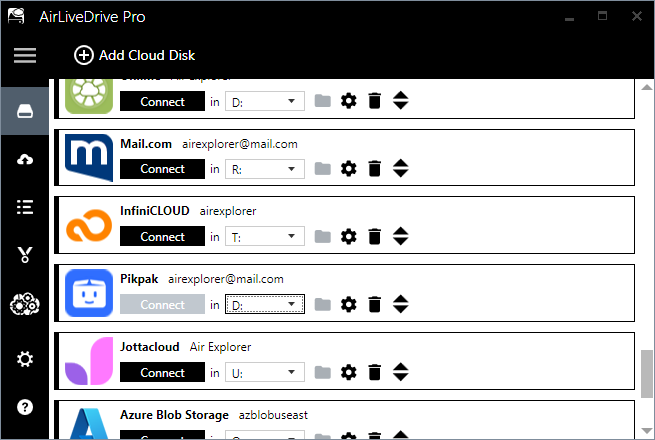
- Install and Launch: Once the software is installed, the main interface acts as your command center for all cloud connections.
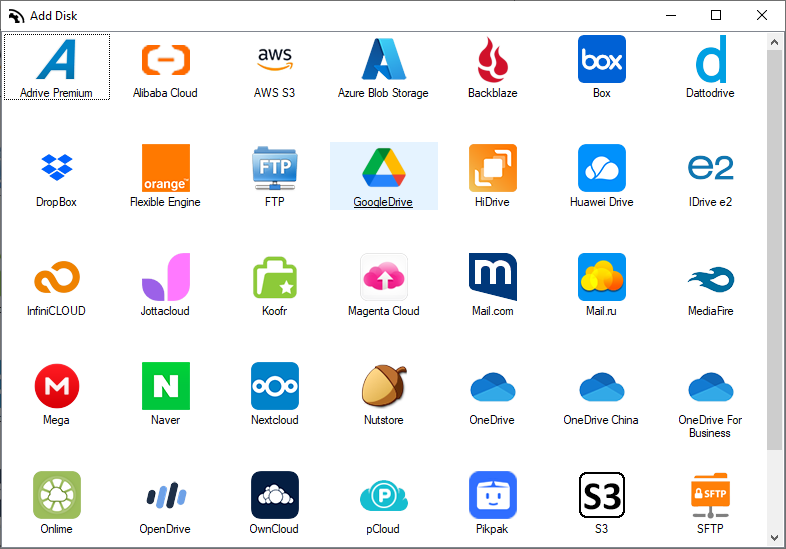
- Add Your Cloud Accounts: Air Live Drive supports an extensive list of providers, including OneDrive, Google Drive, Box, Dropbox, Mega, and specialized protocols like SFTP, FTP, and WebDAV.
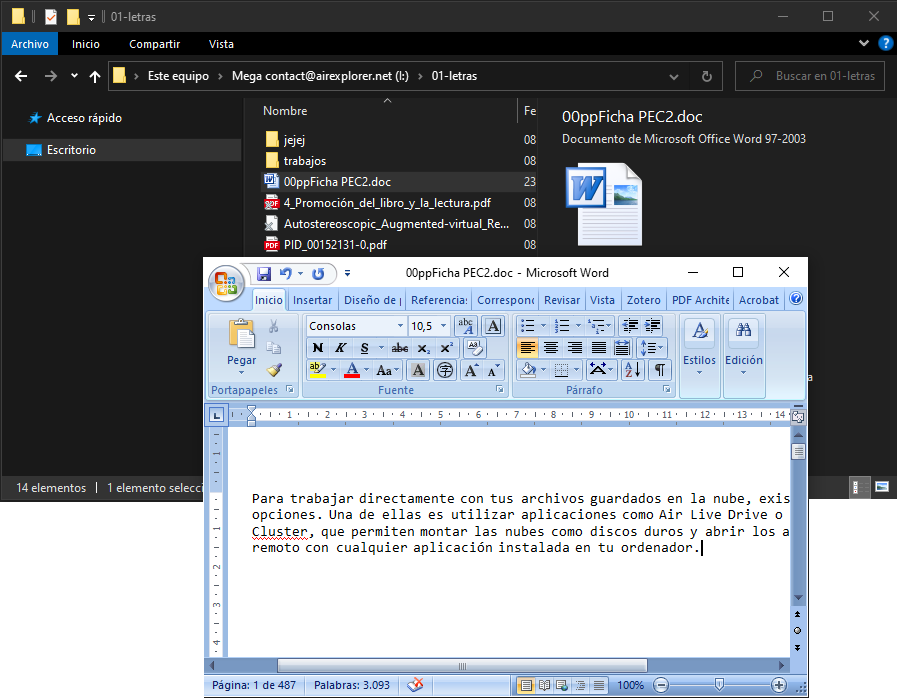
- Assign and Connect: For each account, you can “award a disk” or assign a specific drive letter. Once you click “Connect,” the cloud instantly appears in your Windows Explorer as a new drive.
- Start Working: You can now drag and drop files directly into the cloud or open your cloud-hosted spreadsheets directly from your desktop.
Why Choose Air Live Drive?
While there are various tools available to mount cloud drives, Air Live Drive offers specific technical optimizations that cater to power users and IT professionals.
- Optional Cache System: To solve the issue of internet latency, Air Live Drive includes an optional cache system. This system accelerates file access by temporarily storing frequently used data, ensuring that your most important documents open with local-like speed.
- Background Uploads: Waiting for a 2GB file to finish uploading can stall your workflow. Air Live Drive’s background upload system allows you to save a file and move on to your next task while the software handles the transfer in the rear.
- Deep Windows Integration: The software isn’t just a “window” to your files; it integrates into the OS. You can right-click a file in your mounted drive to “create a shared link” or “open in browser” without ever leaving the folder interface.
- Universal Compatibility: Whether you are using mainstream services like Google Workspace or private servers via SFTP, Air Live Drive acts as a universal translator, bringing all your data into one centralized location.
Conclusion
Mounting your cloud storage as local disks is the most efficient way to manage data in a world of limited local storage. By using Air Live Drive, you eliminate the need for constant synchronization, reclaim your hard drive space, and work with the speed and familiarity of a local environment.